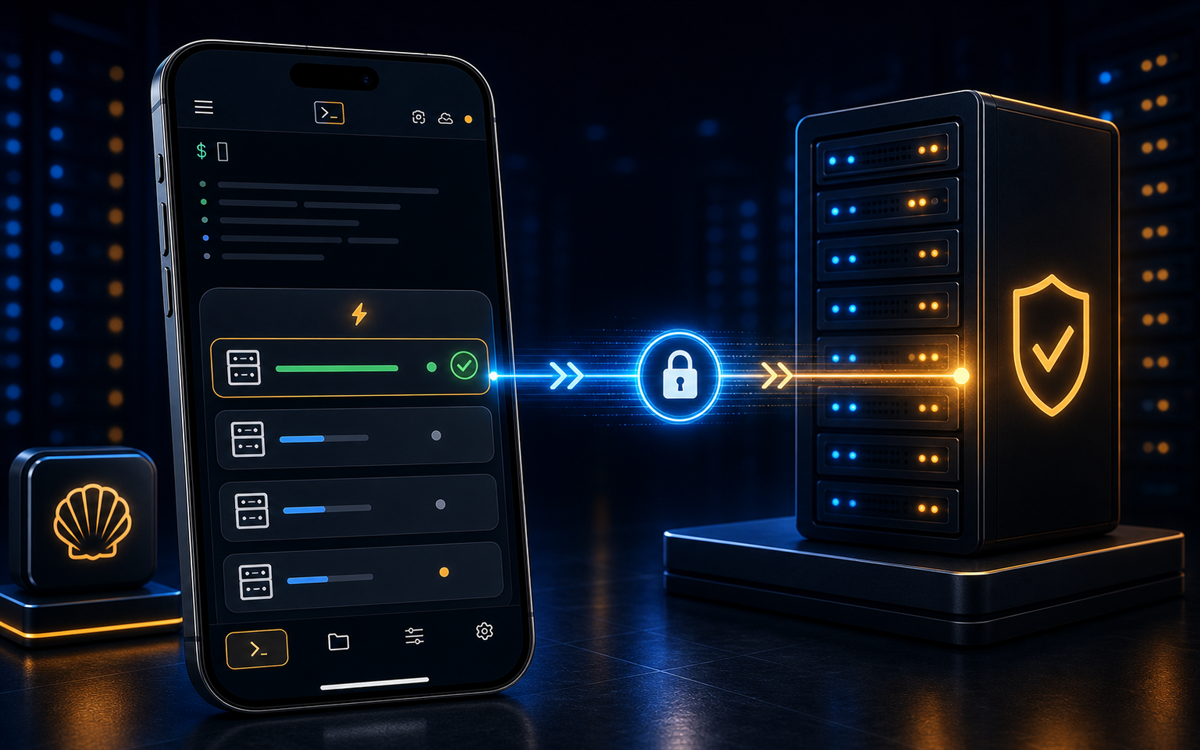
Yes, you can use an SSH terminal on Android or iPhone to remotely manage servers, execute commands, and transfer files securely. Apps like ShellSage enhance this experience with AI features.
What is SSH and Why Use it on Mobile?
Secure Shell (SSH) is a network protocol that provides a secure method to access and control remote machines over an insecure network. It encrypts the connection, ensuring that data transmitted between the client and server remains confidential. Traditionally, SSH is used from a desktop terminal, but with the increasing need for mobility, using SSH from your phone can be a game-changer.
Imagine you're on the go and a server issue arises. Instead of rushing to find a computer, you can simply pull out your phone, open an SSH client, and address the problem immediately. This flexibility is invaluable for sysadmins and developers who need to be available at all times. Mobile SSH clients make it possible to manage servers, run scripts, and even deploy code, all from the palm of your hand.
Mobile SSH clients like ShellSage, Termius, JuiceSSH, and Blink Shell cater to this need, each offering unique features to make the experience smoother. While Termius and JuiceSSH provide robust SSH functionalities, ShellSage stands out with its AI assistant, Sage, which can explain outputs and fix command errors, making it particularly user-friendly for those who might need a little extra help.
Getting Started: Installing an SSH Client on Your Phone
To begin using SSH on your mobile device, the first step is to install an SSH client. For Android users, apps like Termius or JuiceSSH are available on the Google Play Store. iPhone users can download ShellSage or Blink Shell from the App Store.
Once installed, open the app and set up a new connection. You will typically need the following information:
- Host: The IP address or domain name of the server you want to connect to.
- Username: The username you use to log into the server.
- Password: (Optional) If you use password authentication, enter it here. For key-based authentication, you'll need to import your private key.
For instance, to connect to a server with the IP 192.168.1.100 using the username admin, you would enter ssh admin@192.168.1.100 in the connection setup.
With mobile SSH, you can manage your servers anytime, anywhere.
ShellSage simplifies this process with voice input and can even provide a blast-radius preview before executing potentially dangerous commands, ensuring you know exactly what will happen.
How to Transfer Files Using Mobile SSH Clients
Transferring files over SSH is a common requirement. Most mobile SSH clients support secure file transfer protocols like SFTP (SSH File Transfer Protocol), allowing you to upload or download files between your mobile device and the server.
In ShellSage, transferring files is straightforward. After connecting to a server, navigate to the SFTP section. From here, you can browse the server's file system and select files to upload or download. For example, to upload a file named example.txt from your phone to the server, simply select the file and choose the upload option.
Using the command line, you can also perform file transfers. Here's a basic example using scp (Secure Copy Protocol):
scp /path/to/local/file.txt user@host:/path/to/remote/directory/This command sends file.txt from your local device to the specified directory on the remote server. Conversely, to download a file, you would reverse the source and destination paths.
ShellSage's real SFTP capability makes file transfers intuitive and efficient.
What Challenges Do Mobile SSH Clients Face?
While mobile SSH clients offer incredible convenience, they also face unique challenges. Typing complex commands on a small screen can be cumbersome, and network instability can interrupt sessions.
Most clients like Termius and Blink Shell provide basic command history and session management to mitigate these issues. However, ShellSage's AI assistant, Sage, adds an extra layer of functionality by assisting with command syntax and providing explanations for command outputs, which is something other clients typically don't offer.
Another challenge is managing multiple SSH keys and configurations, especially when juggling different environments. ShellSage addresses this with a user-friendly interface that simplifies key management and configuration, making it easier to switch between environments without hassle.
Is ShellSage a Better Choice for Mobile SSH?
While all mobile SSH clients have their strengths, ShellSage offers distinct advantages. Unlike Termius and JuiceSSH, which require manual input for troubleshooting, ShellSage's AI assistant can suggest solutions and correct errors in real-time. This feature is particularly beneficial for users who might not be as comfortable with command-line interfaces.
Additionally, ShellSage's blast-radius preview is a unique feature that provides a safety net by showing the potential impact of a command before it's executed. This can prevent accidental data loss or system misconfigurations.
For those who rely heavily on voice commands, ShellSage's voice input feature can be a game-changer, allowing you to dictate commands instead of typing them, which is especially useful in situations where typing is inconvenient.
In summary, while Termius, JuiceSSH, and Blink Shell are excellent tools for mobile SSH, ShellSage's AI-driven capabilities and user-friendly features make it a compelling choice for both beginners and experienced users.
⚡ Key takeaways
- ›Mobile SSH clients allow remote server management from your phone.
- ›ShellSage provides AI assistance to fix command errors and explain outputs.
- ›File transfers via SFTP are simple and secure with mobile SSH clients.
