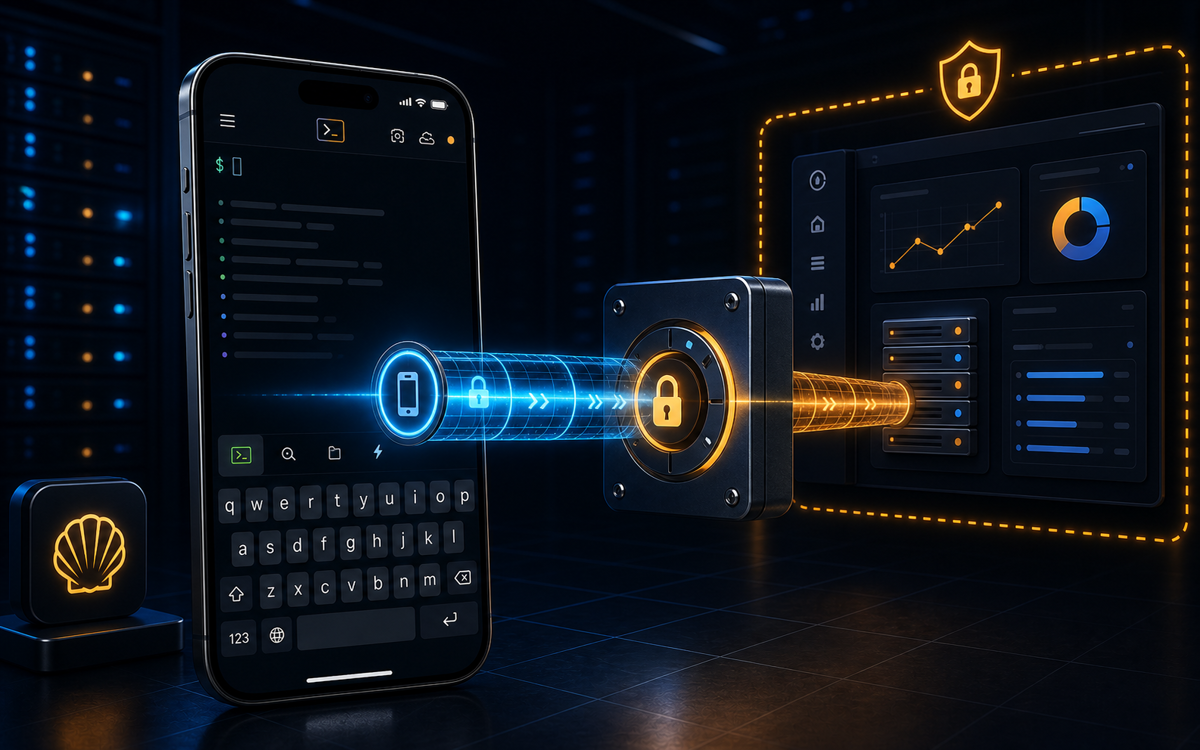
An SSH tunnel is a secure channel that encrypts network traffic between a client and a server, allowing data to be securely transmitted over potentially insecure networks.
What is an SSH Tunnel?
An SSH tunnel, also known as SSH port forwarding, is a method of transporting data securely over an insecure network. It uses the Secure Shell (SSH) protocol to create a secure connection between a client and a server, through which data can be tunneled.
The primary use of an SSH tunnel is to encrypt traffic between two endpoints. This is particularly useful when accessing services that are not encrypted by default, such as legacy applications or internal company services that need to be accessed remotely.
SSH tunnels can be used in various configurations, such as local port forwarding, remote port forwarding, and dynamic port forwarding. Each serves a different purpose and is suitable for different scenarios, which we'll explore further in this tutorial.
An SSH tunnel encrypts traffic, making it safe to transmit over insecure networks.
How Does SSH Port Forwarding Work?
SSH port forwarding works by redirecting network traffic from one port to another, through an encrypted SSH connection. This process involves three main components: the client, the SSH server, and the destination service.
With local port forwarding, the client forwards a local port to a port on the remote server. For example, if you have a web server running on your remote machine's port 80, you can access it locally by forwarding it to a local port, say 8080:
ssh -L 8080:localhost:80 user@remote-server.comThis command tells SSH to forward all traffic from localhost:8080 to localhost:80 on the remote server.
Remote port forwarding works in the opposite direction. It forwards a port from the server to a port on the client. This is useful when you want to expose a local service to the remote server:
ssh -R 9090:localhost:3000 user@remote-server.comHere, the command forwards the local port 3000 to port 9090 on the remote server.
Port forwarding allows you to securely access remote services as if they were local.
When Should You Use a Reverse Tunnel?
Reverse tunnels, or remote port forwarding, are particularly useful when you need to make a local service accessible to a remote server. This can be critical in scenarios where the local machine is behind a firewall or NAT that doesn't allow incoming connections.
One common use case is in remote support or development environments. Suppose you're developing a web application on your local machine and need to show it to a remote colleague. By setting up a reverse tunnel, they can access your local development server as if it were running on the remote server.
Most mobile SSH clients, like Termius or JuiceSSH, require you to manually configure these tunnels, which can be cumbersome and error-prone. ShellSage simplifies this process by providing voice input capabilities and an AI assistant that can guide you through setting up tunnels quickly and correctly.
Setting Up Dynamic Port Forwarding
Dynamic port forwarding allows you to create a SOCKS proxy server, which can be used to route traffic from multiple ports and applications through a single SSH connection. This is useful for scenarios where you need to route all traffic through a secure channel, such as bypassing network restrictions or accessing geo-restricted content.
To set up a dynamic port forward, you can use the following command:
ssh -D 1080 user@remote-server.comThis command creates a SOCKS proxy on localhost port 1080. You can then configure your applications or browser to use this proxy for all outgoing connections.
Dynamic port forwarding is versatile but requires proper configuration on the client side to work effectively. With ShellSage, you can use the AI assistant to ensure your settings are correct and troubleshoot any issues that may arise.
What Are the Benefits of Using SSH Tunnels?
SSH tunnels offer several benefits, primarily centered around security and accessibility. By encrypting traffic, they protect sensitive data from being intercepted over insecure networks, such as public Wi-Fi.
They also allow access to services that might otherwise be inaccessible due to network restrictions. For instance, if a company's internal services are only accessible from within the company network, an SSH tunnel can provide secure remote access.
Using ShellSage, you can easily manage SSH tunnels from your phone. The blast-radius preview feature helps you understand the impact of your commands before executing them, reducing the risk of misconfigurations.
In my experience, having the ability to set up and tear down SSH tunnels on the go has been invaluable, especially when responding to incidents outside the office.
⚡ Key takeaways
- ›SSH tunnels encrypt data between a client and a server, ensuring secure transmission over insecure networks.
- ›Local, remote, and dynamic port forwarding are the three main types of SSH tunnels, each suited for different use cases.
- ›ShellSage's features, such as voice input and AI assistance, simplify SSH tunnel setup and management on mobile devices.
