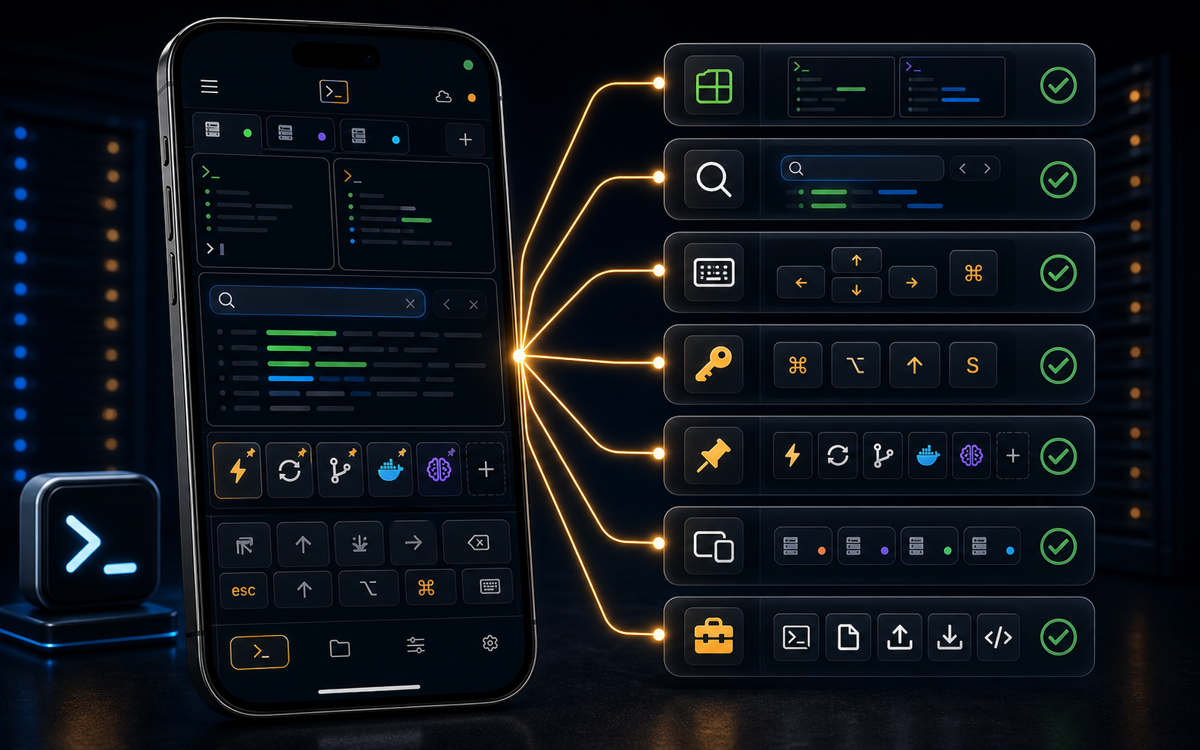
An SSH terminal is a command-line interface used to securely connect and manage remote servers over the SSH protocol, providing encrypted communication between client and server.
What is an SSH Terminal?
An SSH terminal is a powerful tool for system administrators and developers, allowing them to access and manage remote servers securely. SSH, or Secure Shell, is a cryptographic network protocol designed to provide secure command-line interface communication over unsecured networks. An SSH terminal enables users to execute commands, transfer files, and manage network services on a remote machine as if they were physically present at the terminal.
The primary advantage of using SSH is its strong encryption, which secures the data transmitted between the client and server, protecting against eavesdropping and man-in-the-middle attacks. This makes it a preferred choice for remote management in contrast to older protocols like Telnet, which transmit data in plaintext.
SSH provides a secure, encrypted channel for remote server management, safeguarding data from unauthorized access.
In practice, an SSH terminal can be used for various tasks, including system monitoring, software installation, file management, and troubleshooting. It's an indispensable tool for anyone who needs to manage servers without being physically present.
How to Connect to a Remote Server Using SSH
To establish a connection to a remote server using an SSH terminal, you need the server's IP address or hostname, a valid username, and the server's SSH port (default is 22). The basic command syntax for establishing an SSH connection is:
ssh user@hostnameReplace user with your username and hostname with the server's address. If the server uses a non-standard port, specify it using the -p flag:
ssh user@hostname -p 2222Upon executing the command, you may be prompted to accept the server's host key and enter your password. Once authenticated, you'll have command-line access to the remote server.
For enhanced security, many administrators use SSH keys instead of passwords. This involves generating a key pair on your local machine and adding the public key to the server's ~/.ssh/authorized_keys file. To connect using a key, the command remains the same, but the authentication is handled automatically:
ssh user@hostnameSSH keys provide a more secure alternative to passwords, reducing the risk of unauthorized access.
What Tasks Can You Perform with an SSH Terminal?
Once connected to a server via SSH, there are numerous tasks you can perform, making it a versatile tool for server management. Here are a few common use cases:
- System Monitoring: Use commands like
top,htop, orvmstatto monitor system performance and resource usage. - File Management: Navigate the filesystem using commands such as
ls,cd,cp, andrmto manage files and directories. - Software Installation: Install and update software packages using package managers like
aptfor Debian-based systems oryumfor Red Hat-based systems. - Configuration Changes: Edit configuration files with text editors like
nanoorvim. - Troubleshooting: Analyze logs and diagnose issues using tools like
tail,grep, andjournalctl.
These capabilities make SSH terminals essential for maintaining server uptime and performance, especially in environments where physical access is impractical.
How Does ShellSage Enhance SSH Terminal Use on Mobile?
While traditional SSH clients like Termius, JuiceSSH, and Blink Shell provide basic connectivity and command execution, ShellSage enhances mobile SSH terminal use with several unique features. Most mobile SSH clients require manual command entry and lack advanced features like AI assistance or command previews.
ShellSage offers an AI assistant, Sage, that can explain command outputs and suggest fixes for errors, reducing the learning curve for new users. Additionally, the blast-radius preview feature helps prevent accidental system changes by showing the potential impact of commands before execution. This is particularly useful for sysadmins managing critical systems on the go.
With voice input, you can issue commands hands-free, making it convenient when multitasking or in environments where typing is challenging. ShellSage also supports real SFTP, allowing seamless file transfers directly from your phone.
Can You Use an SSH Terminal on a Phone?
Yes, you can use an SSH terminal on a phone, and it has become increasingly practical with the availability of mobile apps. These apps turn your smartphone into a powerful tool for remote server management, allowing you to connect to servers, execute commands, and transfer files from anywhere.
ShellSage is designed to streamline this experience by integrating features that adapt to the mobile environment. Its AI-driven interface, voice input, and blast-radius preview make it stand out from other mobile SSH clients, ensuring you can manage your servers effectively without a full desktop setup.
Using an SSH terminal on your phone can be a lifesaver in situations where immediate access is required, such as during an emergency server outage.
From my experience, having such capabilities in my pocket has saved the day more than once, allowing me to resolve issues without needing to rush back to a workstation.
⚡ Key takeaways
- ›SSH terminals provide secure remote access to servers, enabling command execution and file management.
- ›Using SSH keys enhances security by eliminating the need for passwords, reducing unauthorized access risks.
- ›ShellSage's AI features and mobile-friendly design make SSH terminal use on phones more efficient and intuitive.
