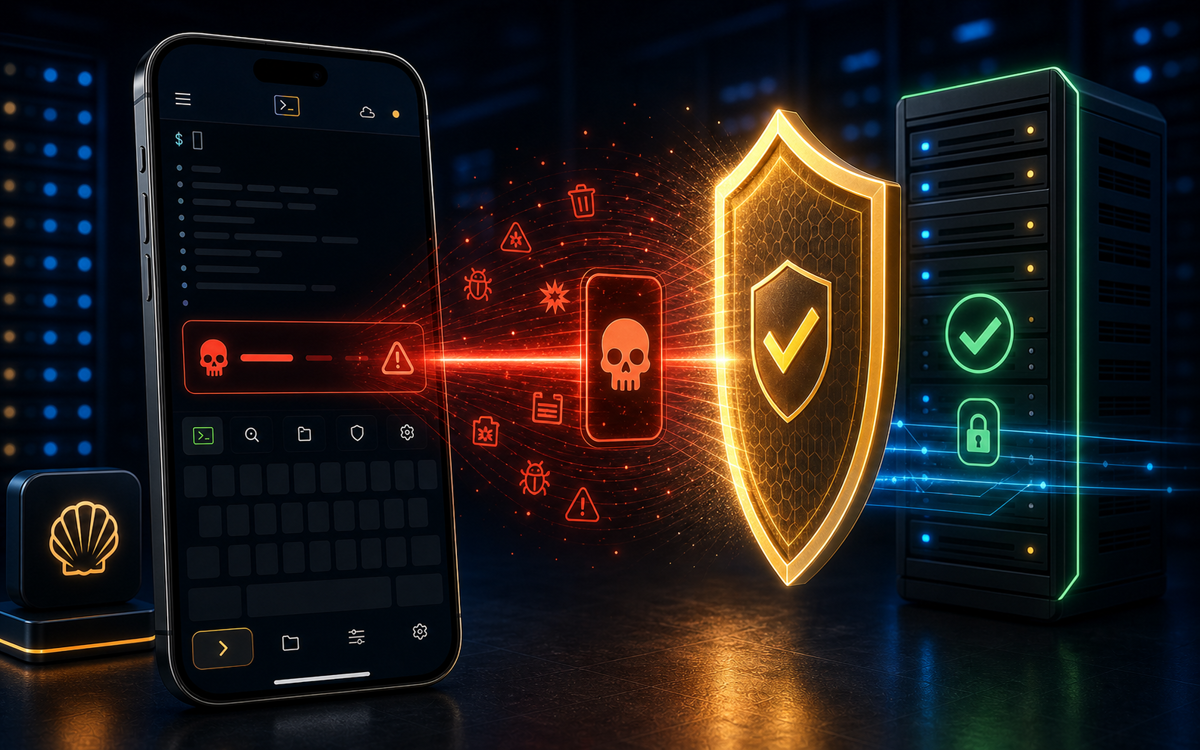
ShellSage implements a robust protective mechanism known as the destructive-command shield to prevent catastrophic mistakes, such as executing rm -rf /. This feature requires users to confirm their intent before executing potentially harmful commands, significantly reducing the risk of accidental data loss.
What is the Destructive-Command Shield?
The destructive-command shield in ShellSage is a safety feature designed to protect users from running commands that could cause irreversible damage to their systems. Commands like rm -rf /, which recursively removes files from the root directory, are flagged as dangerous. When such a command is detected, ShellSage takes proactive measures to ensure that you do not run it without fully understanding the consequences.
"The destructive-command shield is your first line of defense against catastrophic command execution."
When you attempt to run a command that matches a destructive pattern, ShellSage replaces the usual Run button with a red warning. This visual cue alerts you that you are about to execute a command that can lead to significant data loss or system instability. The shield is designed to safeguard your work and prevent mistakes that can happen in the heat of troubleshooting or system management.
How Does ShellSage Protect You from Dangerous Commands?
ShellSage employs a combination of visual alerts and user input requirements to mitigate the risks associated with executing dangerous commands. When you type a command that matches a known destructive pattern, the app does not allow it to run automatically. Instead, it requires you to type the command character by character to confirm your intent.
This means if you try to run rm -rf /, you will see a red warning instead of the standard execution prompt. You will need to carefully type out each character of the command again to proceed. This extra step serves as a crucial checkpoint, allowing you to reconsider your actions before proceeding with potentially disastrous consequences.
"Typing out a dangerous command forces you to pause and think before executing it, reducing the chance of human error."
What Happens When You Attempt to Run a Destructive Command?
When you enter a command that ShellSage identifies as destructive, the app will not run it immediately. Instead, it replaces the Run button with a prominent red warning, indicating that you are about to execute a potentially harmful command. The app will also present you with an option to proceed, but only if you manually type the command again to confirm.
rm -rf /To continue, you must retype the command exactly as it appears. This requirement is an intentional design choice to ensure that you are fully aware of what you are about to do. It serves as both a safeguard and an educational moment, prompting you to think critically about the command you are executing.
How Does ShellSage Handle Tap-to-Run Commands?
ShellSage offers a convenient tap-to-run feature that allows users to execute commands quickly. However, even with this feature enabled, the destructive-command shield still takes precedence. If you have the “Always run on tap” option activated, attempting to run a destructive command will still trigger the shield, preventing any auto-execution.
This means that even if you are accustomed to quickly running commands with a simple tap, ShellSage ensures that you take a moment to confirm your actions when it comes to potentially harmful commands. This extra precaution is especially useful for those who may be working on mobile devices, where the risk of accidental taps is higher.
What About Production Environments?
In production environments, where the stakes are even higher, ShellSage provides an additional layer of protection. For hosts tagged as production, the AI Run feature is entirely skipped. This means that if you attempt to run a command that is flagged as dangerous, you will not receive the usual AI assistance. Instead, you will need to manually copy the command suggestion and paste it into the terminal.
This approach reinforces the importance of caution in production settings. It ensures that critical operations are not executed without thorough consideration. By requiring manual confirmation and execution, ShellSage helps to maintain the integrity of production systems, reducing the likelihood of catastrophic mistakes.
Practical Examples of the Shield in Action
Let’s consider a practical example of how the destructive-command shield works. Suppose you are troubleshooting a server and decide to clean up some files. You might run the command:
rm -rf /tmp/old_logsIn this case, ShellSage would not flag this command as dangerous since it targets a specific directory. However, if you mistakenly type:
rm -rf /You would see the red warning immediately. To execute the command, you would need to retype it character by character. This moment of hesitation can save you from a costly error.
Another scenario might involve running a command to format a drive:
mkfs /dev/sdaThis command would also trigger the destructive-command shield, requiring you to confirm your intent before proceeding. The consequences of formatting a drive can be severe, and ShellSage’s protective measures help ensure that you do not make such a mistake lightly.
Conclusion: Embracing Safety in Command Execution
ShellSage’s destructive-command shield is a vital tool for anyone working with SSH, Linux, or the command line. By implementing visual warnings and requiring confirmation for dangerous commands, the app significantly reduces the risk of accidental data loss or system instability. As an infrastructure engineer, I have seen firsthand the damage that can occur from a simple mistyped command. Having a safety net like ShellSage provides peace of mind, especially when managing critical systems.
Embracing this feature means taking responsibility for your actions and understanding the power of the commands you execute. Whether you are a seasoned sysadmin or a developer just starting, ShellSage’s destructive-command shield is an essential ally in navigating the command line safely.
⚡ Key takeaways
- ›ShellSage's destructive-command shield prevents accidental command execution.
- ›Users must type dangerous commands character by character to confirm intent.
- ›Production environments require manual execution of commands to ensure safety.
