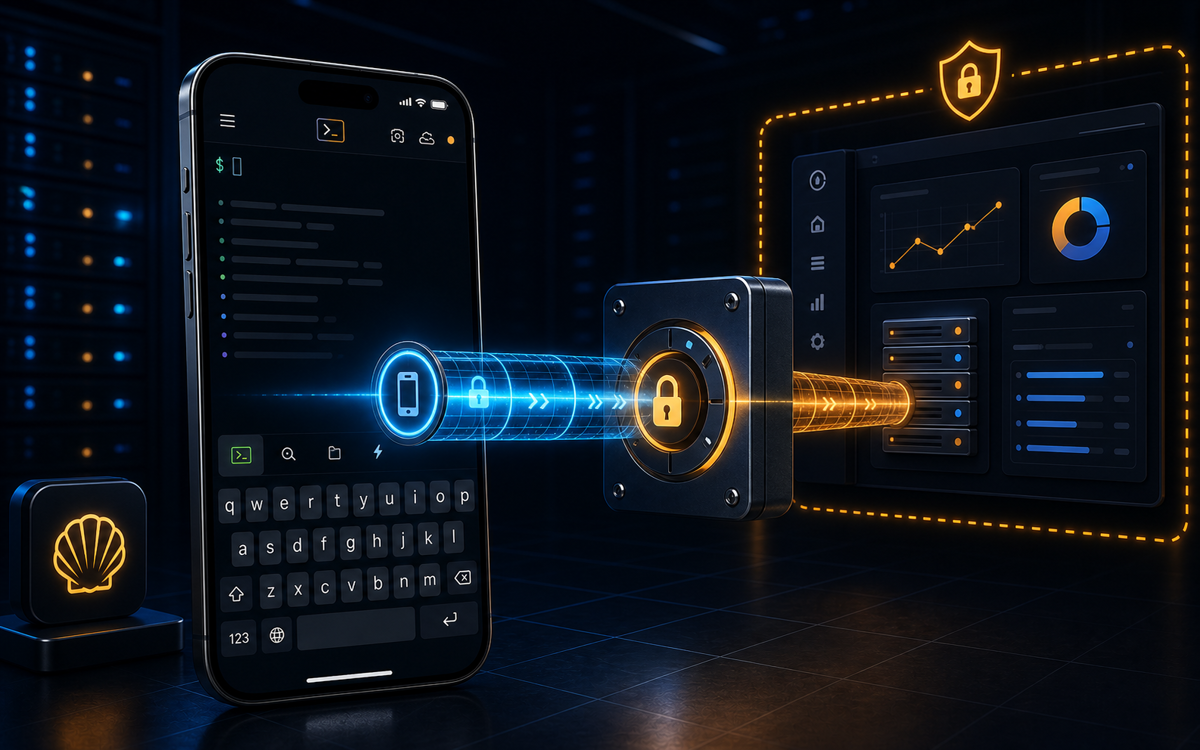
Short answer: SSH port forwarding lets you reach a service that only your server can see, like a database bound to localhost, by tunneling it through your phone's live SSH session. ShellSage turns the classic ssh -L command into a three-field form, so you set one up in under a minute without memorizing any flags.
What is SSH port forwarding, in plain English?
A tunnel opens a port on your phone that pipes through your SSH session to a service the server can reach. You point an app at 127.0.0.1:<port> on the phone, and the traffic lands on the remote service. The classic case is a database such as Postgres on 5432, MySQL on 3306, or Redis on 6379 that is bound to the server's own localhost and closed to the public internet. The tunnel makes that private service feel like it is running right on your phone.
Where do you find it in ShellSage?
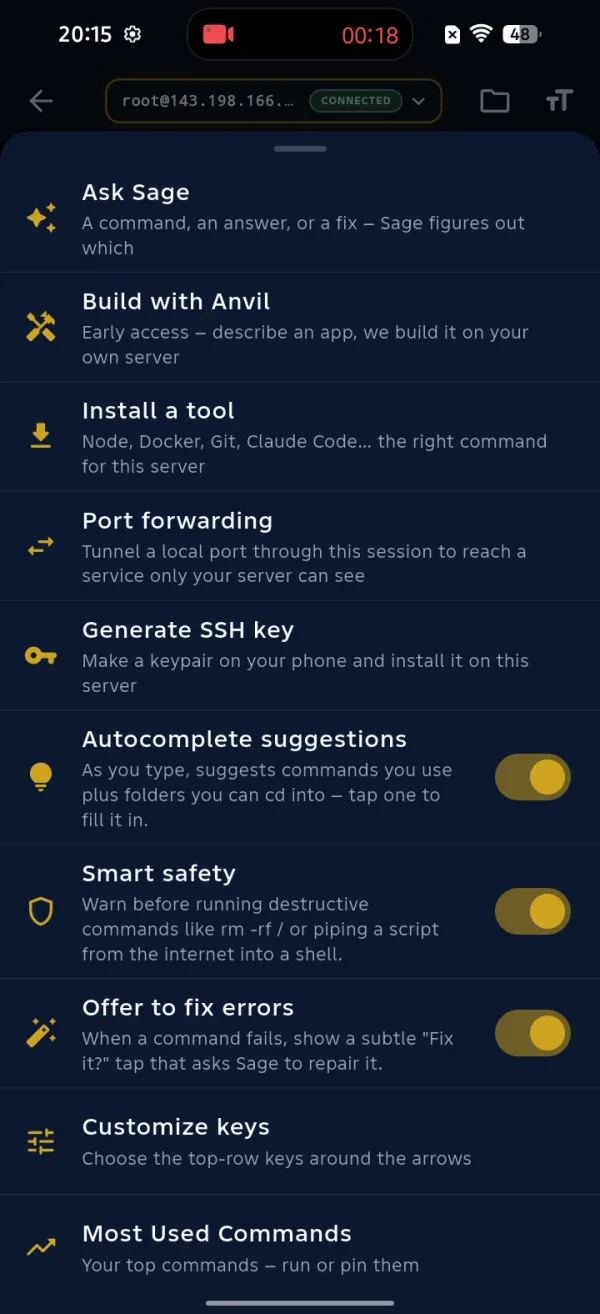
Connect to a host, then tap the menu button (the three lines) in the terminal key bar. The menu has a Port forwarding option, sitting right alongside Ask Sage, Install a tool, and Generate SSH key.
The tunnels screen
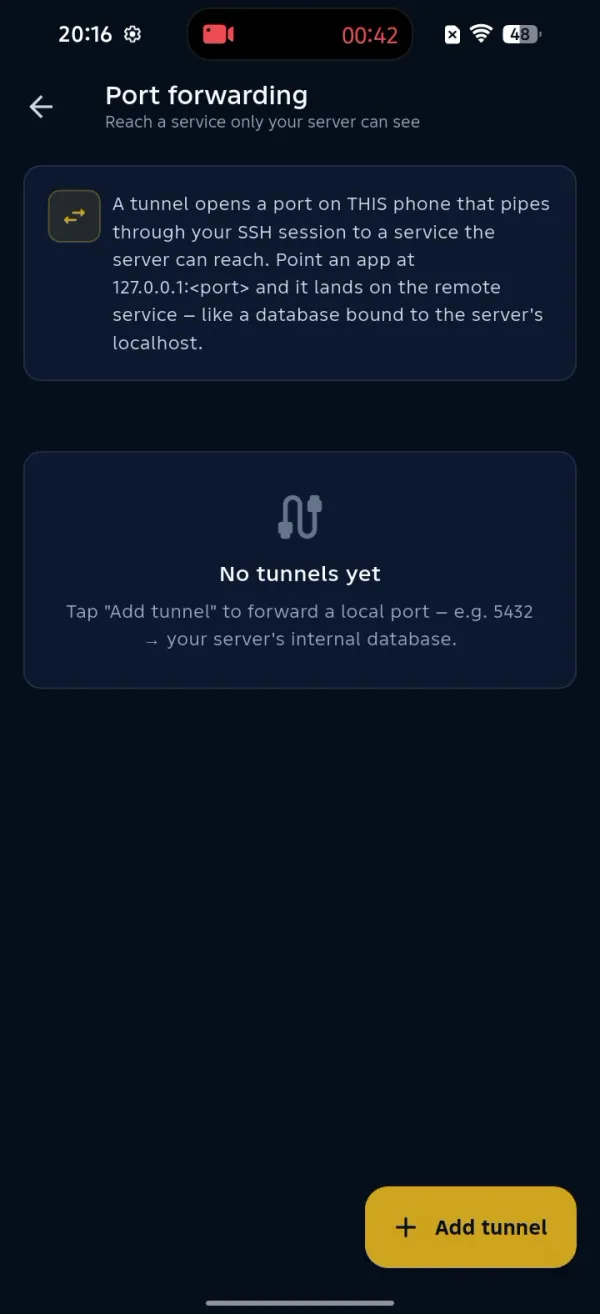
Tapping Port forwarding opens a screen that explains tunnels in plain language and lists the ones you have already added. On a fresh session you will see a short explainer and a single big Add tunnel button.
How do you add a tunnel?
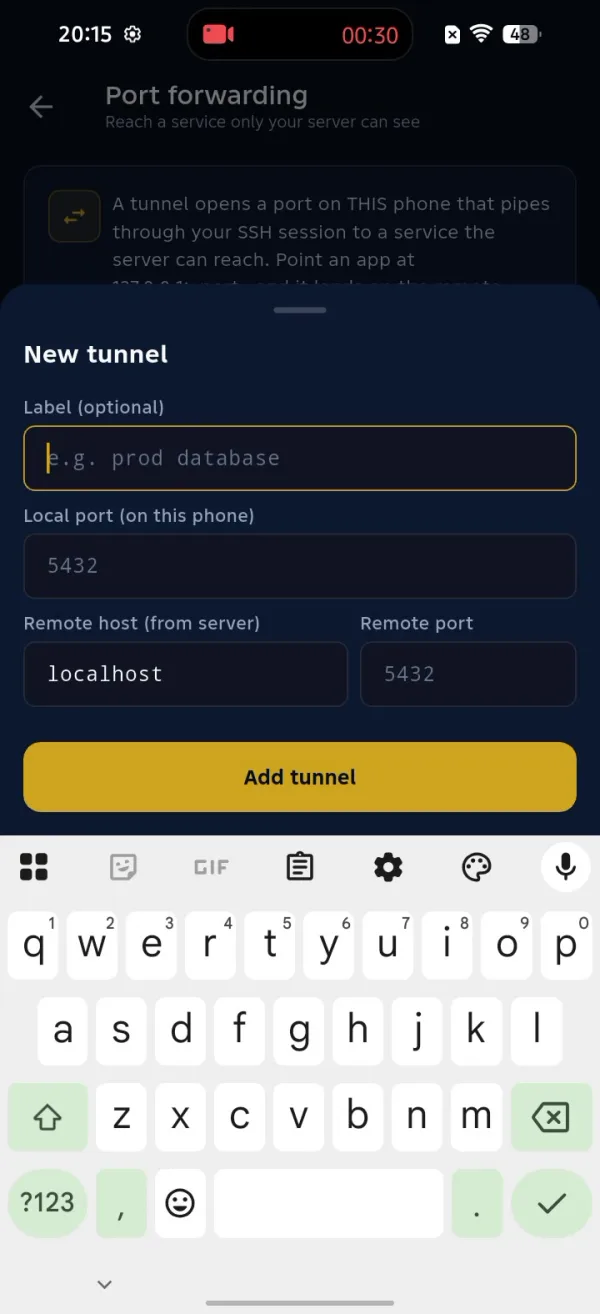
Tap Add tunnel and fill in three things:
- Label (optional) a name you will recognize later, like "prod database".
- Local port (on this phone) the port you will connect to on
127.0.0.1, for example 5432. - Remote host and remote port (from the server) usually
localhostand the service's real port, for examplelocalhost:5432.
Tap Add tunnel and the forward is live for this server. No ssh -L 5432:localhost:5432 user@host to type, and nothing to get wrong on a phone keyboard.
It is the same secure mechanism the pros use on the desktop, turned into a three-field form you can fill with your thumbs.
A real example: reach a private database
Say Postgres runs on your droplet bound to localhost:5432 and closed to the outside world. Add a tunnel with local port 5432 and remote localhost:5432. Now open your database client, or psql, against 127.0.0.1:5432 on the phone and you are talking to the server's Postgres, encrypted end to end through SSH, without ever exposing the port publicly.
Why is this safer and faster?
The local end of every tunnel binds to 127.0.0.1 on your phone only, so nothing else on the network can ride it. You never open a firewall port, never expose the database, and never have to recall the exact ssh -L syntax under pressure. It is the same secure tunnel, minus the friction, which means you can check an internal dashboard or query a private database from the train in about thirty seconds.
⚡ Key takeaways
- ›Port forwarding reaches services bound to your server localhost, like databases and admin dashboards, without exposing them to the internet.
- ›ShellSage turns ssh -L into a three-field form: label, local port, and remote host and port.
- ›Every tunnel binds to 127.0.0.1 on your phone only, so it stays private to your device.
