
Preset Commands in ShellSage is a built-in launcher that runs common server tasks in one tap, with ready-made commands for AI setup, monitoring, Docker, git, services, networking and more, plus your own custom commands. Tap the lightning-bolt button in the terminal, pick a command, and it runs. No typing long flags on a phone keyboard.
What are Preset Commands and where do you find them?
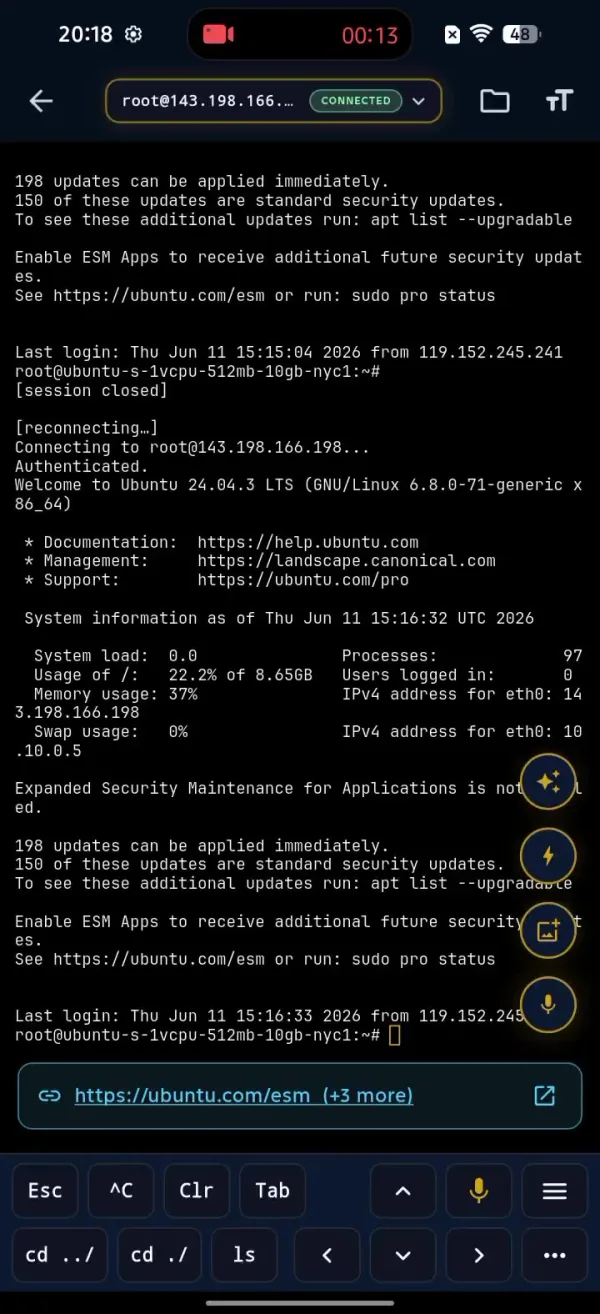
When you connect to a server, look at the row of action buttons on the terminal. Next to Ask Sage, the screenshot tool and voice input, there is a lightning-bolt icon. That is Preset Commands. Tap it and a panel slides up with your recent commands at the top and a full library of ready-to-run commands underneath.
The idea is simple. Most of the commands you run on a server are the same handful you always run: check disk usage, look at running processes, restart a service, pull the latest git changes. On a laptop you have them in your shell history or muscle memory. On a phone, typing find . -name something with the right flags is slow and easy to fumble. Preset Commands gives you those tasks as buttons.
The commands you run most are the ones worth never typing again.
What is in the built-in command library?
Open the library and the commands are grouped into categories so you can scan to what you need. There is a search bar at the top and a set of clear sections under it.
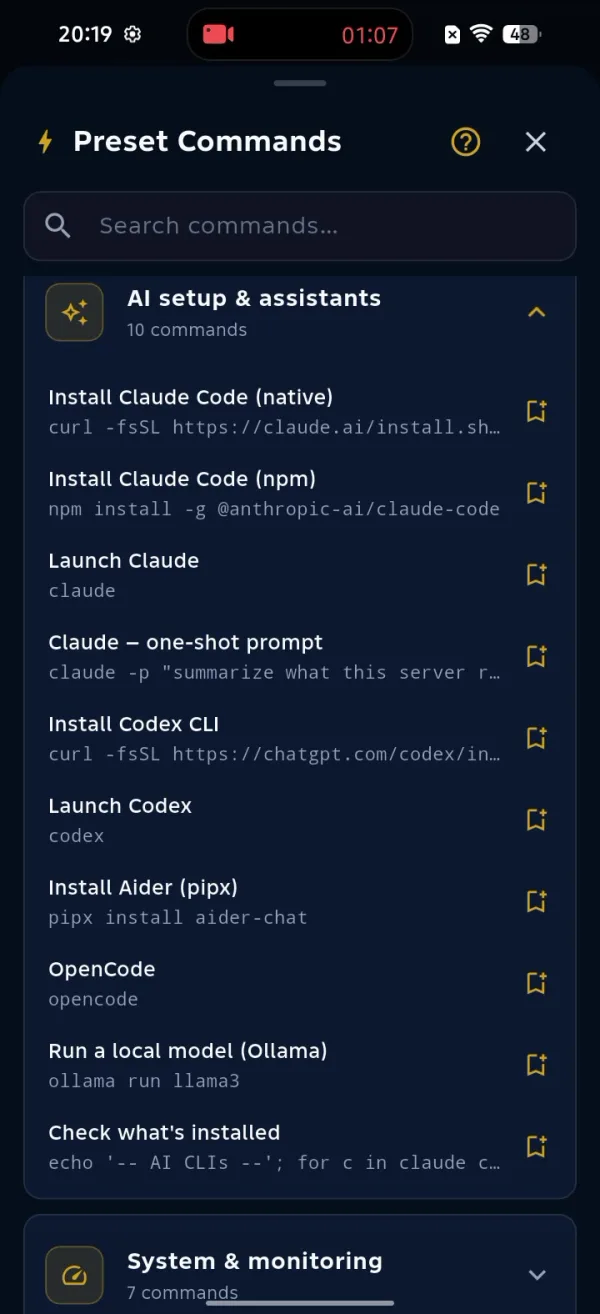
The categories cover the day-to-day work of running a box:
- AI setup and assistants: one-step installs for Claude Code, Codex, Aider, OpenCode and Ollama on your server, so you can stand up an AI coding tool on the machine itself.
- System and monitoring: a live process viewer, disk usage and memory usage, the things you reach for first when a server feels slow.
- Services: restart or reload a service without remembering the exact
systemctlsyntax. - Docker: common container commands at a tap.
- Networking and files and search: find files by name and check what is listening.
- Git: run
git statusand the other checks you do before a deploy. - Updates and packages, plus web and SSL: keep the box patched and certificates healthy.
These are the presets ShellSage ships so you can execute them quickly. You are not limited to them, but they cover most of what you do on a fresh login.
How do you find the right command fast?
The library has a search bar that filters across every command as you type. Type find and the list narrows instantly to the file-search commands. Type disk and you get disk usage. This is the fastest way in when you know the word but not the exact category.
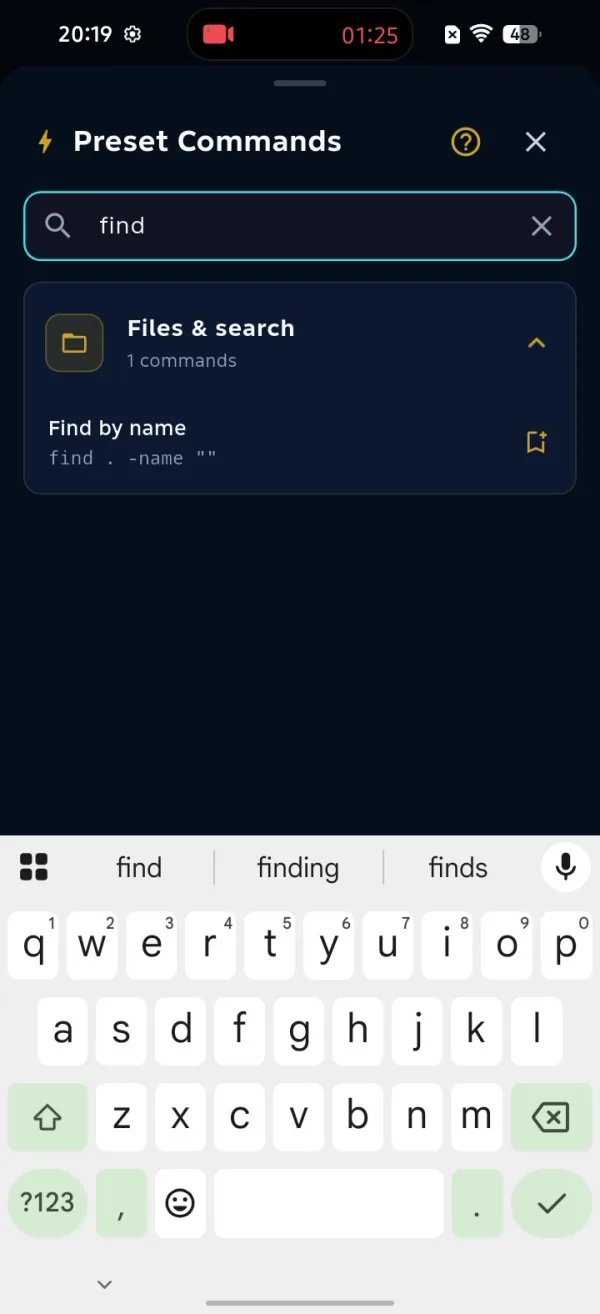
If you cannot remember a command at all, you do not have to leave the terminal to look it up. Ask Sage to write it for you in plain English, then save the result as your own preset so it is one tap next time. Search first, ask second, save what you reuse.
Can you create and save your own commands?
Yes, and this is where Preset Commands earns its place. Tap create, give the command a name, paste the command itself, and save. Say you keep checking the heaviest processes. Name it top, paste your command, and save it.
ps -eo pid,ppid,cmd,%mem,%cpu --sort=-%cpu | head -n 15When you save a custom command you get three options that make it even faster to reach:
- Quick Launch: pin it so it shows up front without opening the full library.
- Keyboard button: put it on the on-screen key bar for a true one-tap run while you type.
- Auto-answer Yes: for commands that prompt for confirmation, let ShellSage answer Yes so the command runs straight through.
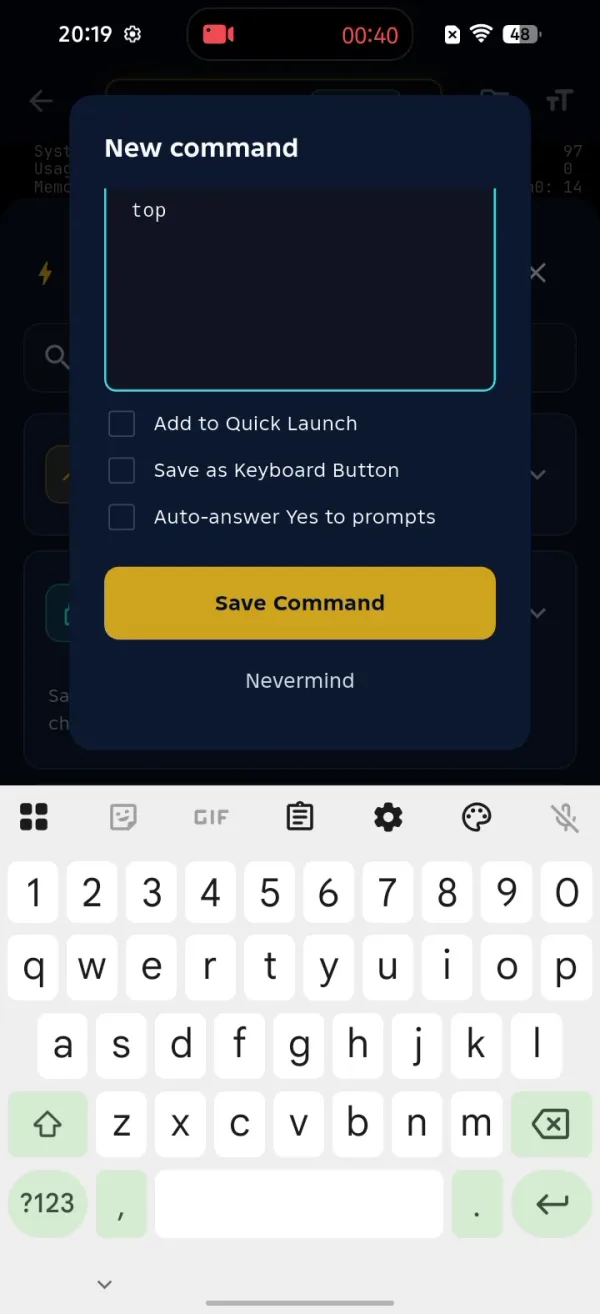
Once saved, the command lives in your library. You can copy it to read or edit it first, or execute it directly. The first time I set up a server from my phone, I saved my three post-deploy checks as presets and never typed them again on that box.
How fast is it to run one?
Tap a command and it runs immediately in your live session. Run the live process viewer and the output lands at the top of your terminal, right where you are working. There is nothing to confirm for safe commands, and ShellSage still stops you on anything destructive.
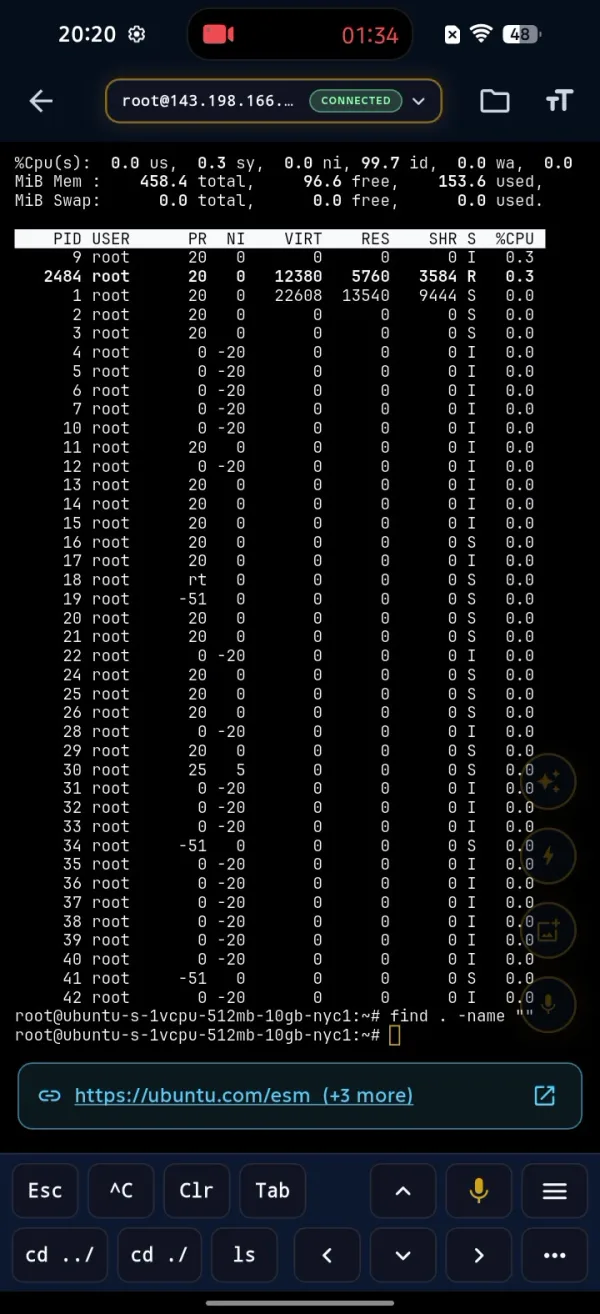
Every command you run also gets remembered. Your most-used commands surface in their own section, so the things you actually reach for float to the top over time. Search a command once, run it, and it starts showing up where you can grab it without searching again.
Why this makes you faster on a phone
Working from a phone is normally slower than a laptop because typing is slower and mistakes cost more. Preset Commands closes most of that gap. The tasks you repeat become buttons, the long flags are baked in once, and the commands you cannot remember are a search or an Ask Sage away.
A button you tap is faster than a command you type, every single time.
Put together with custom commands, Quick Launch and the most-used history, you end up with a launcher shaped around your own servers. Check disk, restart a service, run git status, install an AI tool, all from the lightning button, all in one tap. That is the whole point: less typing, fewer mistakes, more done from wherever you are.
⚡ Key takeaways
- ›Tap the lightning-bolt button in the terminal to open Preset Commands, ready-to-run tasks plus your own custom ones.
- ›Built-in categories cover AI setup, system monitoring, services, Docker, networking, git, packages and web/SSL.
- ›Create custom commands and pin them to Quick Launch, a keyboard button, or auto-answer Yes for one-tap runs.
- ›Search filters every command instantly, and your most-used commands surface automatically over time.
