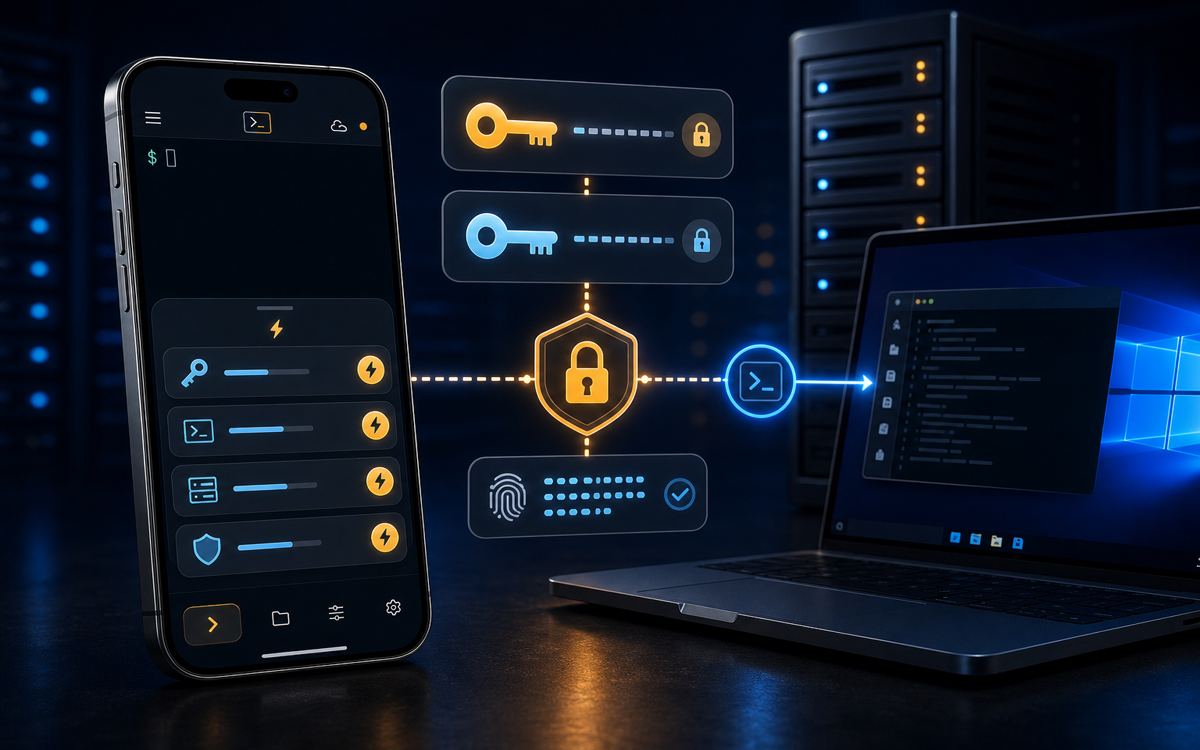
To use SSH keys on Windows, generate a key pair with ssh-keygen and add the public key to your server's ~/.ssh/authorized_keys file.
Why Use SSH Keys Instead of Passwords?
SSH keys provide a more secure and convenient method of authentication than traditional passwords. They use cryptographic techniques to establish a secure connection without transmitting your password over the network. This reduces the risk of eavesdropping and man-in-the-middle attacks.
Using SSH keys also simplifies the login process. Once configured, you can log into your server without typing a password each time. This is particularly useful for automated scripts or when accessing multiple servers frequently.
SSH keys offer enhanced security and convenience over passwords.
Moreover, SSH keys enable you to enforce stricter access controls. You can generate different key pairs for different servers or tasks, allowing you to revoke access to a specific key without affecting others.
How to Generate SSH Keys on Windows
Generating SSH keys on Windows can be done using the built-in OpenSSH client. Follow these steps to create a key pair:
- Open a Command Prompt or PowerShell window.
- Run the following command to generate a new SSH key pair:
This command creates a 4096-bit RSA key pair. You can replace the email address with a label for your key.ssh-keygen -t rsa -b 4096 -C "your_email@example.com" - When prompted, choose a location to save the key. The default location is
C:\Users\YourUsername\.ssh\id_rsa. - Optionally, enter a passphrase for added security. This passphrase will be required to use the private key.
These steps will generate two files: a private key (e.g., id_rsa) and a public key (e.g., id_rsa.pub).
How to Add Your SSH Key to a Server
Once you've generated your SSH key pair, the next step is to add your public key to the server you want to access. Here's how:
- Copy the public key to your clipboard using the following command:
clip < C:\Users\YourUsername\.ssh\id_rsa.pub - Log into your server using a password-based SSH connection:
- Once logged in, open the
~/.ssh/authorized_keysfile in a text editor: - Paste your public key into this file and save it.
- Ensure the permissions are correct by running:
chmod 600 ~/.ssh/authorized_keys
Adding your public key to ~/.ssh/authorized_keys allows you to log in without a password.Now, you should be able to log into your server using SSH keys, without needing to enter your password.
What If I Encounter Issues with SSH Keys?
Issues with SSH keys can often stem from incorrect permissions or misconfigured key files. Ensure that your ~/.ssh directory and authorized_keys file have the correct permissions. The directory should be 700 and the file 600.
If you're using a different username on your server, make sure the key is associated with the correct account. You can specify the username in your SSH command like so:
ssh user@hostAnother common issue is a mismatch between the private and public keys. Ensure that both files are from the same key pair. If necessary, regenerate the keys and re-add the public key to the server.
How Does ShellSage Simplify SSH Key Management on Mobile?
Most mobile SSH clients like Termius and JuiceSSH require manual configuration of SSH keys, making it cumbersome to manage keys across multiple devices. ShellSage, however, offers an innovative solution with its AI-driven assistant, Sage. Sage can guide you through setting up SSH keys directly from your phone, explaining each step and fixing common errors.
ShellSage also provides a blast-radius preview, allowing you to understand the impact of your actions before executing potentially dangerous commands. This feature is especially useful when managing SSH keys, as it helps prevent accidental lockouts.
Furthermore, ShellSage supports voice input, making it easier to manage SSH keys hands-free, which is particularly convenient when on the move.
⚡ Key takeaways
- ›SSH keys provide secure, password-free authentication.
- ›You can generate SSH keys using <code>ssh-keygen</code> on Windows.
- ›ShellSage simplifies SSH management on mobile with AI assistance.
