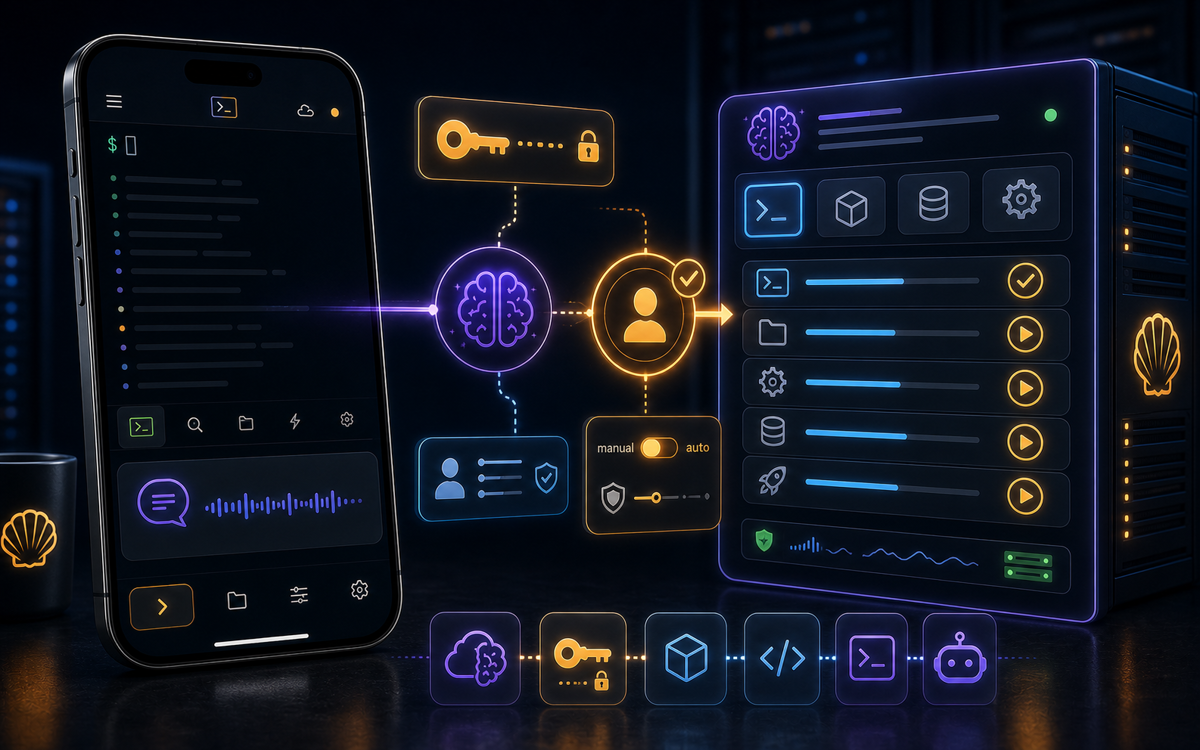
To run Claude or Codex AI on your server from your phone, use ShellSage's "Launch Claude" or "Launch Codex" features, choosing between manual or automated control.
Setting Up Your Server for Claude or Codex
Before you can run Claude or Codex AI on your server, you need to ensure that the necessary CLI tools are installed. These AI models require specific command-line interfaces to interact with your server’s environment. Typically, you'll start by accessing your server via SSH. Use a command like ssh user@host to connect securely.
Once connected, you can install the required CLI tools. For most distributions, you'll use a package manager like apt for Ubuntu or yum for CentOS. Here's a general command to install a hypothetical tool:
sudo apt update
sudo apt install claudex-cli
Make sure to replace claudex-cli with the actual package name for the AI model you intend to use. If the package isn't available in your distribution's repositories, you might need to download it from the AI provider's website and follow their installation instructions.
Installing the correct CLI is crucial to interact with Claude or Codex effectively.
How to Use ShellSage to Launch Claude or Codex
With the CLI tools set up, you can now leverage ShellSage to run these AI models from your phone. ShellSage facilitates this through its "Launch Claude" and "Launch Codex" features, which are conveniently pinned at the bottom of the Productivity Toolbox within the app.
To begin, connect to your server using ShellSage. Once connected, tap either "Launch Claude" or "Launch Codex" depending on your needs. ShellSage will prompt you to choose between two modes: "I Want Control" and "Full Automation". In the "I Want Control" mode, the AI will pause at every confirmation prompt, waiting for your explicit Yes or No before proceeding. This mode is ideal if you prefer to oversee each operation closely.
Alternatively, "Full Automation" allows ShellSage to auto-confirm prompts for that session, streamlining processes but placing full responsibility for actions on you. If you ever need to switch back to manual control, simply reconnect to the server.
ShellSage's dual-mode control offers flexibility between manual oversight and streamlined automation.
What Makes ShellSage Different from Other SSH Clients?
While many mobile SSH clients like Termius and JuiceSSH provide fundamental SSH connectivity, ShellSage stands out with its AI-driven features and user-friendly interface. For example, most SSH clients require manual command entry and lack integrated AI support. ShellSage not only allows for voice input, making command entry faster and more convenient on a phone, but it also includes a blast-radius preview feature that assesses the potential impact of commands before execution.
Moreover, ShellSage’s AI assistant, Sage, can explain command outputs and suggest fixes, which is particularly beneficial when dealing with complex AI models like Claude or Codex. This level of integration and assistance is something other SSH clients typically do not offer, making ShellSage a unique choice for developers and sysadmins looking for advanced capabilities.
Executing and Managing AI Workflows on Your Server
Once your AI model is running, managing workflows effectively is key to getting the most out of Claude or Codex. ShellSage provides tools to assist in this regard. For instance, you can use its real SFTP capabilities to manage files directly from your phone, streamlining the process of uploading model inputs and downloading outputs.
Additionally, using the Sage AI assistant, you can gain insights into the AI model's outputs. If a command returns unexpected results, Sage can help explain the output and suggest corrections. This feature is invaluable during troubleshooting and ensures that your AI workflows run smoothly and efficiently.
Here’s a simple workflow example to run a model prediction:
./claudex-cli predict --input data.txt --output results.txtThis command runs a prediction using the input file data.txt and stores the results in results.txt. With ShellSage, you can monitor this process and make adjustments as needed, all from the convenience of your mobile device.
Are There Any Limitations or Considerations?
While ShellSage offers robust features, there are some considerations to keep in mind. Running AI models requires significant server resources, so ensure your server meets the necessary specifications for the AI models you plan to run. Additionally, while "Full Automation" can speed up processes, it's crucial to be aware of the risks associated with auto-confirming commands.
Another practical aspect is network reliability. Running these workflows over a mobile connection can be challenging if your connection is unstable. It’s advisable to use a stable Wi-Fi connection when working with resource-intensive tasks.
Finally, while ShellSage provides a comprehensive suite of tools, always keep your server’s security in mind. Regularly update your software and follow best practices for SSH security to prevent unauthorized access.
⚡ Key takeaways
- ›ShellSage enables running Claude or Codex AI models directly from your phone with flexible control options.
- ›Most SSH clients lack integrated AI support, making ShellSage's features particularly valuable.
- ›Proper server setup and network reliability are key to effective AI workflow management using ShellSage.
