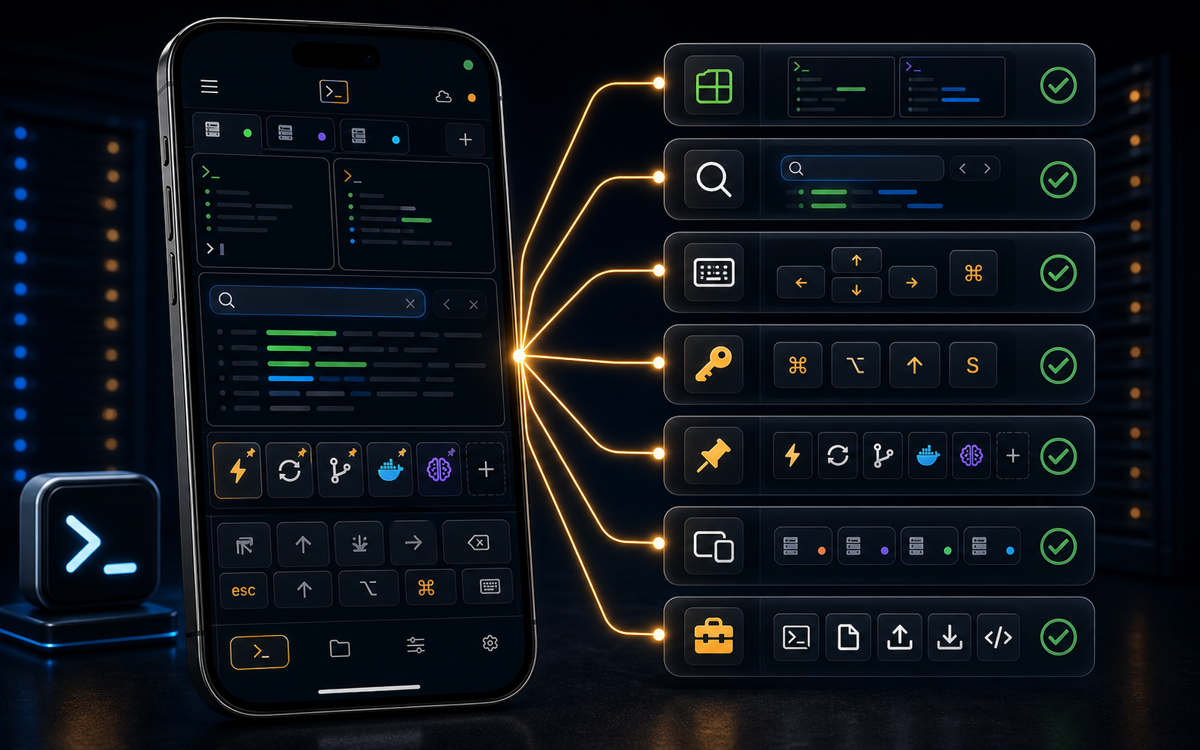
To search your terminal scrollback on your phone using ShellSage, tap the magnifier icon in the terminal's top bar to open Find in session, type your query, and navigate matches with ease.
How to Use Find in Session on ShellSage
Searching through terminal output on a mobile device can often be cumbersome, but ShellSage's Find in session feature simplifies this process significantly. To activate it, simply tap the search (magnifier) icon located in the terminal's top bar, right next to the folder and font-size buttons. This action will transform the top bar into a search bar where you can type your query.
As you type, ShellSage highlights every match found in the session's scrollback. This feature allows you to quickly identify the information you're looking for without manually scrolling through lines of output. The up and down chevrons in the search bar enable you to jump to the previous or next match, with a helpful counter showing your current position, such as 3/12.
ShellSage's Find in session feature makes navigating terminal output on your phone a breeze.
To exit the search mode, simply tap the X or press the Esc key, which will close the search bar and clear all highlights. This ensures that your terminal remains clutter-free once you're done searching.
What Makes ShellSage Stand Out?
While most SSH clients like Termius and JuiceSSH offer basic search capabilities, ShellSage enhances the user experience by integrating AI to explain outputs and fix commands. This is particularly advantageous for users who may not be familiar with complex terminal outputs or the intricacies of certain commands.
Moreover, ShellSage includes a unique blast-radius preview feature that helps prevent potential mishaps before executing dangerous commands. This is something that sets it apart from other clients, where such safety nets are often absent.
With ShellSage, you're not just searching; you're navigating with confidence and clarity.
How to Handle URLs in Terminal Output
One of the standout features of ShellSage's Find in session is its ability to handle URLs efficiently. When a URL (http/https) appears on the current screen, it is displayed as a second row inside the search bar, complete with a link icon on the left and an "open in new" icon on the right. This allows you to open the link directly in your phone's browser, streamlining your workflow.
If multiple URLs are present, ShellSage shows the most recent one along with a "(+N more)" indicator. Tapping this indicator opens a picker that lists all detected links. This feature is especially useful for dealing with long, wrapped URLs, such as those for login or OAuth processes, ensuring you can open the entire link correctly without hassle.
When Should You Use Find in Session?
The Find in session feature is particularly useful in scenarios where you're dealing with extensive logs or outputs that contain critical information you need to locate quickly. For instance, if you're troubleshooting an application and need to find specific error messages, this feature can save you significant time and effort.
Additionally, if you're working on a collaborative project and need to reference specific output lines during a team discussion, being able to search and highlight those lines directly on your phone can be incredibly convenient.
Practical Tips for Effective Terminal Searching
To get the most out of ShellSage's Find in session, consider using specific keywords related to the output you're interested in. This could be error codes, command outputs, or even timestamps. The more precise your query, the faster you'll locate the information.
Remember, you can also utilize ShellSage's voice input feature to dictate your search queries. This can be a huge time-saver, especially when you're on the go or if typing on a mobile device is inconvenient.
Lastly, take advantage of ShellSage's AI assistant, Sage, which can provide explanations of complex outputs or suggest corrections for misentered commands, enhancing your overall efficiency and understanding.
⚡ Key takeaways
- ›ShellSage's Find in session simplifies searching terminal output on mobile devices.
- ›URLs in terminal output are easily accessible with ShellSage's integrated link handling.
- ›ShellSage's AI assistant offers explanations and command corrections, enhancing usability.
