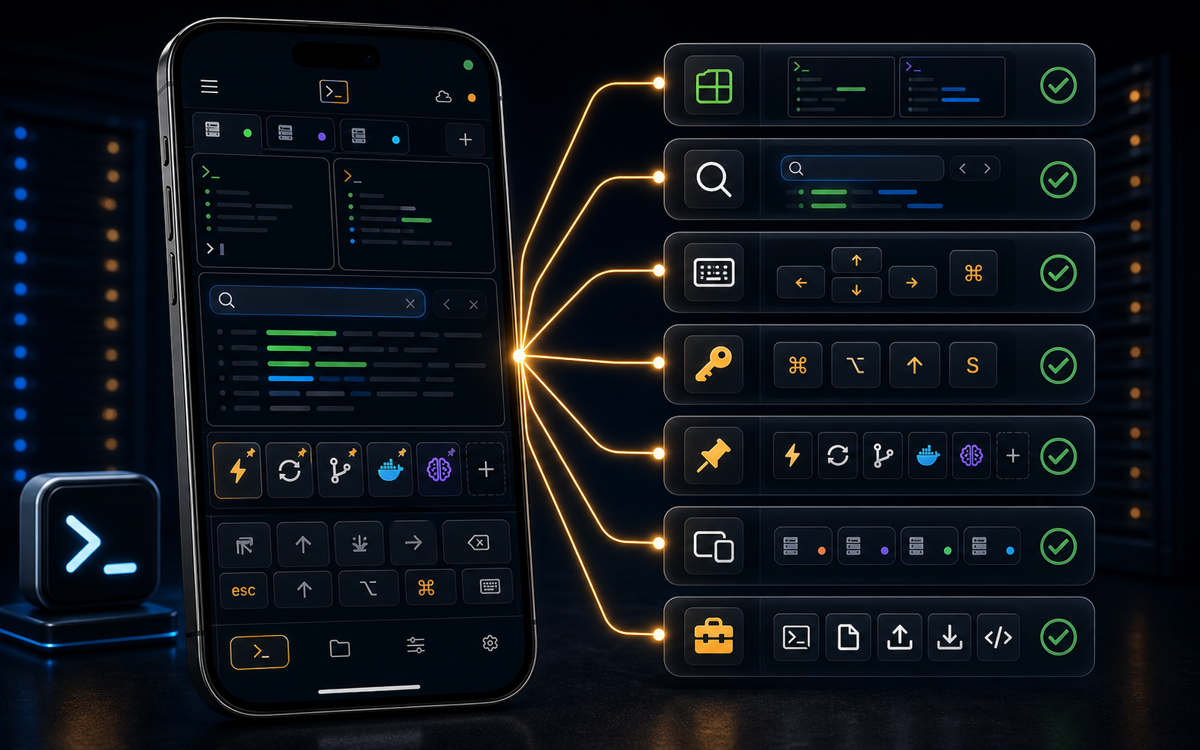
The Productivity Toolbox in ShellSage centralizes essential terminal actions to streamline your SSH experience on mobile devices.
What is the Productivity Toolbox?
ShellSage's Productivity Toolbox is a comprehensive suite of tools designed to enhance productivity for developers and sysadmins working with SSH on mobile devices. Accessing it is straightforward: tap the hamburger menu on the right of the key accessory bar, and a full-screen sheet titled "Productivity Toolbox" will appear. This toolbox offers actions beyond simple typing, each opening its dedicated tool for specific tasks.
Among the available tools, you will find options such as "Ask Sage AI for Help," which opens an AI chat to assist with command explanations and error resolutions. This is particularly useful when you're on the go and need immediate feedback without diving into extensive documentation.
A punchy, self-contained key line from your own explanation.
The toolbox also provides options to "Diagnose SSH Errors On Screen," allowing the AI to read and interpret your terminal's output, offering insights and potential fixes. This feature alone can save countless hours of troubleshooting by providing immediate context and solutions.
How to Use Quick Presets & Custom Commands
One of the standout features of the Productivity Toolbox is "Quick Presets & Custom Commands." This tool allows you to save frequently used commands or sequences into presets, making repetitive tasks more efficient. To set this up, select the "Quick Presets & Custom Commands" option within the toolbox, and you'll be able to create and manage your custom command list.
For example, if you regularly need to check disk usage, you can create a preset for du -sh *. Once saved, executing this command becomes a one-tap action, streamlining your workflow significantly.
Save time by turning repetitive tasks into one-tap actions with custom commands.
Unlike other SSH clients like Termius or JuiceSSH, which require manual entry each time, ShellSage allows you to automate and simplify these processes directly within the app, enhancing productivity on the go.
Why Use Sage AI for Diagnosing SSH Errors?
SSH errors can be cryptic and often require a deep understanding of the underlying systems to diagnose. The "Diagnose SSH Errors On Screen" feature in ShellSage leverages Sage AI to automatically read and analyze the terminal output. This AI-driven approach can identify common issues such as permission errors, connection timeouts, and authentication failures, providing you with actionable advice.
For instance, if you encounter a "Permission denied" error, Sage AI might suggest checking your user permissions or verifying your SSH key. This guidance can be crucial when you're working remotely and need a quick resolution without extensive Googling.
Most mobile SSH clients, like Blink, do not offer this level of integrated AI assistance, requiring users to troubleshoot manually. ShellSage's AI integration is a game-changer, especially for those managing multiple servers or complex configurations.
How to Upload Reference Images and Files
Uploading files directly from your mobile device to a server can be cumbersome with traditional SSH clients. ShellSage simplifies this with the "Upload Reference Images / Files" feature. This tool allows you to quickly transfer necessary files without switching between apps or using additional software.
To upload a file, open the Productivity Toolbox, select "Upload Reference Images / Files," and choose the file from your device. The process is seamless, and the file is transferred directly to the connected server, ready for use.
This feature is particularly useful for developers who need to deploy configuration files or reference images quickly. Unlike JuiceSSH, which lacks integrated file transfer capabilities, ShellSage provides a complete solution within a single app.
When Should You Use Port Forwarding?
Port forwarding is a crucial technique for accessing services on a remote server securely. The "Port Forwarding" tool in ShellSage allows you to set up and manage port forwarding directly from your mobile device. This is ideal for accessing web applications or databases behind a firewall.
To set up port forwarding, access the Productivity Toolbox and select "Port Forwarding." You'll be prompted to enter the necessary details, such as local and remote ports. Once configured, you can access the remote service via your local device as if it were running locally.
While Termius offers port forwarding, it often requires more manual configuration. ShellSage's streamlined interface and AI support simplify the process, making it accessible even for those less familiar with networking concepts.
Using ShellSage's Productivity Toolbox, you can transform your mobile device into a powerful SSH terminal, equipped with AI-driven insights and automation. Whether you're diagnosing errors, automating commands, or managing files, the toolbox provides a comprehensive solution for efficient on-the-go server management.
⚡ Key takeaways
- ›ShellSage's Productivity Toolbox centralizes essential SSH tools for mobile.
- ›Quick Presets & Custom Commands streamline repetitive tasks with one-tap actions.
- ›Sage AI provides real-time error diagnosis, enhancing mobile troubleshooting.
