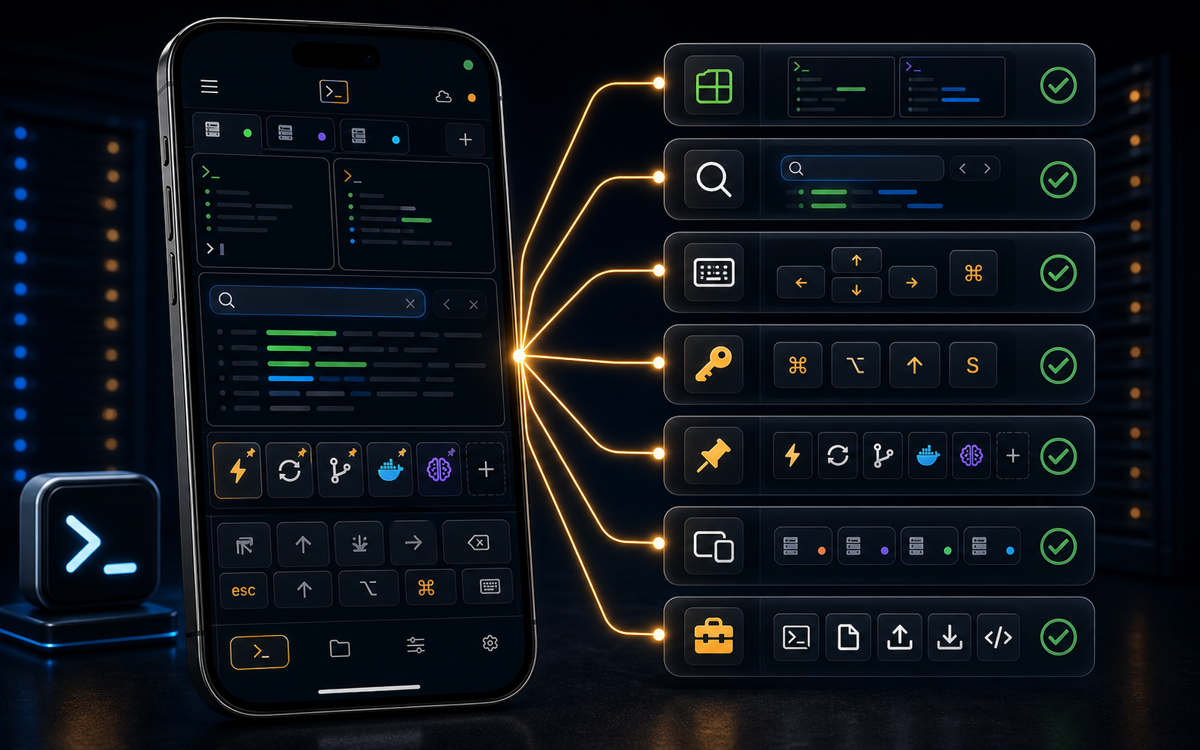
In ShellSage's mobile SSH terminal, the dedicated keyboard key allows you to easily show or hide the on-screen keyboard, optimizing screen space for command output.
Why Manage the On-Screen Keyboard in Mobile SSH?
When you're working on a mobile SSH terminal, screen space is a precious commodity. Every inch matters, especially when you're trying to read through long command outputs or logs. ShellSage understands this need and provides a dedicated keyboard key on its terminal key bar. This feature allows users to toggle the on-screen keyboard on and off with a single tap, making it much easier to manage screen real estate.
Without this feature, users often find themselves juggling between typing commands and scrolling through output, which can be cumbersome on smaller screens. By effectively managing the on-screen keyboard, you can focus more on the task at hand and less on adjusting your workspace.
A punchy, self-contained key line from your own explanation.
As someone who frequently works on the go, I've found that being able to quickly hide the keyboard to view more output without losing my place has been a game-changer. It's one of those small conveniences that significantly enhances productivity.
How to Show and Hide the Keyboard in ShellSage
Using the keyboard show and hide feature in ShellSage is straightforward. The terminal key bar includes a permanent, dedicated keyboard key located between the 'Clr' and the up-arrow keys. Tapping this key will either show the on-screen keyboard if it's currently hidden or hide it if it's visible.
Here's how you can use this feature:
- Open the ShellSage app on your phone and connect to your desired server using the SSH protocol. For example, you might use a command like
ssh user@host. - Once you're in the terminal, observe the terminal key bar at the bottom of the screen.
- Locate the keyboard key, which is positioned between 'Clr' and the up-arrow. Tap it to toggle the on-screen keyboard.
This feature is particularly useful when you need to quickly switch between typing commands and reviewing terminal output without any interruptions.
Toggle your keyboard with a single tap to maximize screen visibility.
What Makes ShellSage Stand Out?
While other mobile SSH clients like Termius and JuiceSSH offer robust SSH capabilities, they often require more manual steps to manage the on-screen keyboard. For instance, in these apps, dismissing the keyboard might involve tapping outside the input area or using gestures that are not as intuitive.
ShellSage simplifies this process with a fixed, non-remappable keyboard key, ensuring that you can always access this functionality without hunting through settings or menus. Moreover, ShellSage's AI assistant, Sage, further enhances the user experience by explaining output and correcting commands, which are features not typically found in competitors like Blink Shell.
When Should You Use This Feature?
Understanding when to use the keyboard toggle can significantly enhance your workflow. Here are some scenarios where this feature proves invaluable:
- Reviewing Logs: When you need to scroll through lengthy logs, hiding the keyboard maximizes the visible text area.
- Running Scripts: For scripts that produce a lot of output, quickly hiding the keyboard can help you monitor progress more effectively.
- Debugging: If you're troubleshooting issues, being able to switch between input and output views without losing context is crucial.
In these situations, the ability to swiftly manage the keyboard can save time and reduce frustration, allowing you to focus on resolving server issues or executing tasks more efficiently.
Tips for Efficient Use of ShellSage's Keyboard Feature
Here are some practical tips to get the most out of ShellSage's keyboard show and hide feature:
- Practice the Toggle: Familiarize yourself with the location of the keyboard key so you can instinctively use it when needed.
- Combine with Voice Input: Utilize ShellSage's voice input feature to run commands without using the keyboard at all, freeing up even more screen space.
- Use Blast-Radius Preview: Before running potentially dangerous commands, take advantage of the blast-radius preview to understand the impact, further minimizing unnecessary keyboard usage.
By incorporating these tips into your routine, you'll find that managing your SSH sessions on a phone becomes much more fluid and less cumbersome.
⚡ Key takeaways
- ›ShellSage's dedicated keyboard key streamlines mobile SSH workflow.
- ›Maximize screen space by toggling the on-screen keyboard with a tap.
- ›ShellSage offers unique AI features that enhance SSH terminal use.
