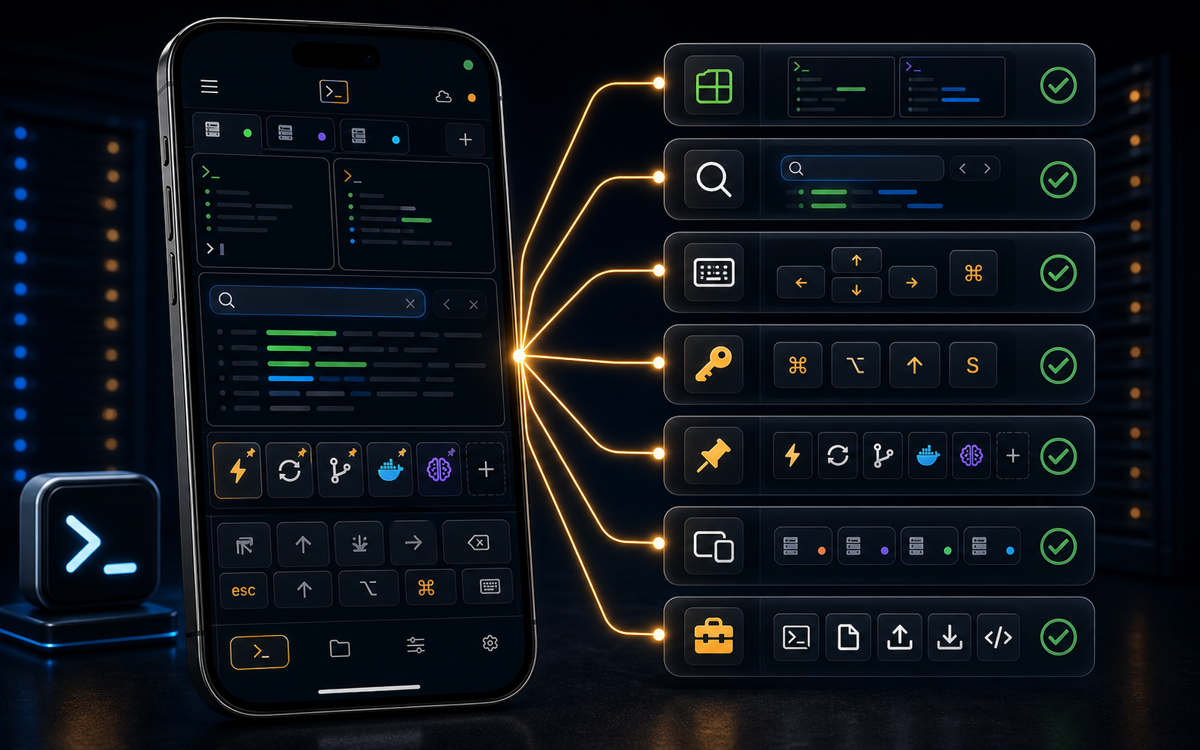
ShellSage allows you to effortlessly pin and reuse your most frequently used commands, saving you time and reducing errors in your terminal workflow.
Understanding Your Most Used Commands
When working in a command-line environment, efficiency is key. Repeatedly typing the same commands can be both time-consuming and error-prone. ShellSage offers a feature called "My Most Used Commands" that can significantly enhance your productivity by learning the commands you use most frequently and making them easily accessible. This feature keeps track of your command usage per connection, allowing you to run these commands again with a single tap.
The advantage of having your frequently used commands at your fingertips is clear. Not only does it save you from typing them out each time, but it also reduces the likelihood of making a typo that could lead to unintended consequences. With ShellSage, you can see these commands in a dedicated section, ready to run without any additional input.
A punchy, self-contained key line from your own explanation.
By integrating this feature into your workflow, you can maintain focus on more complex tasks rather than getting bogged down by repetitive command entry. Plus, with ShellSage's AI assistant Sage, you can get explanations and fixes for your commands, ensuring you understand what each command does and how it affects your system.
How to Pin Commands in ShellSage
Pinning commands in ShellSage is a straightforward process. Once the app identifies your most used commands, you can choose to pin them as always-visible keys on the key bar. This means that no matter where you are in the app, your pinned commands are just a tap away.
To pin a command, navigate to the "My Most Used Commands" section. Here, you'll see a list of commands that ShellSage has identified based on your usage. Simply tap the pin icon next to any command you wish to keep readily accessible. Once pinned, these commands appear on the key bar, allowing you to execute them with a single tap.
This feature is especially useful when you're on the go. Imagine needing to quickly restart a service or check a log file while commuting. With your commands pinned, you can perform these tasks swiftly and efficiently without needing to type out long command strings on your phone's keyboard.
Pinning commands in ShellSage means they're always just a tap away.
In contrast, other mobile SSH clients like Termius and JuiceSSH require you to manually enter commands each time or rely on less intuitive methods for saving and reusing commands. ShellSage simplifies this process with its intuitive pinning system and AI assistance.
When Should You Use Pinned Commands?
Pinned commands are ideal for any task you find yourself performing regularly. Whether it's checking system uptime with uptime, viewing running processes with top, or monitoring disk usage with df -h, having these commands readily accessible can save you valuable time.
Consider the tasks you perform most often. If you're a developer, you might frequently pull the latest code from a repository using git pull. As a sysadmin, you might regularly restart services with commands like sudo systemctl restart nginx. By pinning these commands, you eliminate the need to type them out manually each time.
Moreover, if you're working on a critical system and need to ensure you don't accidentally run a destructive command, ShellSage's blast-radius preview can show you the potential impact of a command before you execute it. This feature is particularly useful when using commands that modify system state, such as rm -rf /some/directory.
Examples of Useful Pinned Commands
To help you get started, here are some examples of commands that are commonly pinned by users:
ls -al: Quickly list all files in a directory with detailed information.tail -f /var/log/syslog: Continuously monitor system logs for new entries.ssh user@host: Connect to a remote server without retyping the full SSH command.docker ps: List running Docker containers to keep an eye on containerized applications.htop: An interactive process viewer for Unix systems, offering a more user-friendly way to monitor system resources.
These commands represent a mix of daily administrative tasks and system monitoring, making them excellent candidates for pinning in ShellSage.
How Does ShellSage Compare to Other Mobile SSH Clients?
Most mobile SSH clients like Termius and Blink require users to manually save commands or scripts for reuse, often without the intuitive ease of pinning seen in ShellSage. While these apps offer robust SSH capabilities, they lack the AI-driven enhancements that ShellSage provides.
ShellSage not only allows for easy pinning of commands but also leverages its Sage AI assistant to explain command outputs and suggest corrections. This is particularly beneficial when you're working from a mobile device and need quick, reliable guidance without switching back and forth between apps for documentation.
Furthermore, ShellSage's voice input feature enables you to execute commands by speaking, which can be a lifesaver when typing on a mobile device is cumbersome. This is a significant advantage over other clients, making ShellSage a top choice for mobile SSH access.
⚡ Key takeaways
- ›ShellSage's 'My Most Used Commands' feature saves time by reusing commands.
- ›Pin commands for quick access and reduce the risk of errors while on the go.
- ›ShellSage AI offers explanations and previews to ensure safe command execution.
