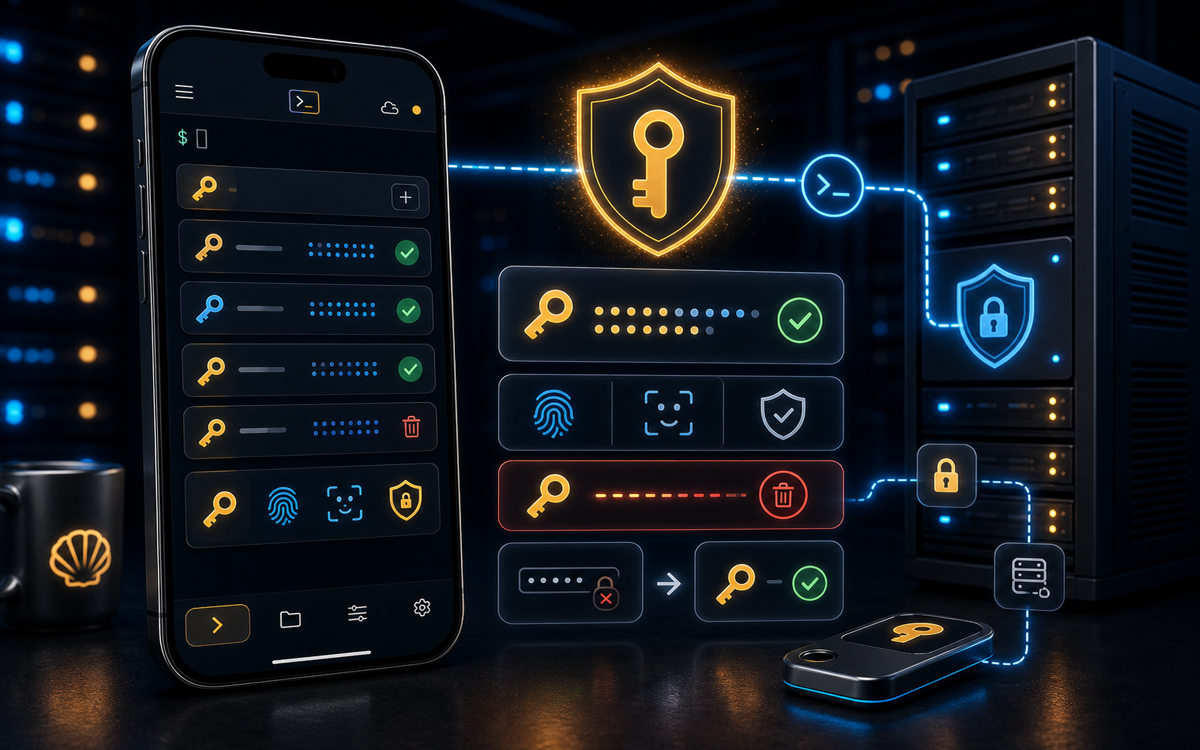
SSH key authentication allows you to connect to remote servers securely without the need to enter passwords. This tutorial walks you through the steps to set it up effectively.
What is SSH Key Authentication?
SSH key authentication is a method that uses a pair of cryptographic keys to authenticate users. These keys consist of a private key, which is kept secure on your local machine, and a public key, which is placed on the server you want to access. When you attempt to connect to the server, the server checks the public key against the private key to grant access.
SSH keys provide a more secure and convenient way to access your servers.
Using SSH keys not only eliminates the need to type passwords, which can be cumbersome, especially when you are accessing multiple servers, but it also enhances security. Passwords can be guessed or intercepted, while SSH keys are much harder to crack due to their cryptographic nature.
How Do You Generate SSH Keys?
To set up SSH key authentication, the first step is to generate your SSH key pair. This can be done easily using the `ssh-keygen` command. Open your terminal and run the following command:
ssh-keygen -t rsa -b 4096 -C "your_email@example.com"Here’s what each option means:
-t rsa: Specifies the type of key to create, in this case, RSA.-b 4096: Sets the number of bits in the key to 4096, which is more secure than the default 2048.-C: Adds a label (comment) to the key for identification, typically your email.
After running the command, you will be prompted to choose a location to save the key pair. The default location is ~/.ssh/id_rsa. You can just press Enter to accept this default. Next, you’ll be asked to enter a passphrase. This adds an additional layer of security but is optional.
Always use a strong passphrase for better security when generating SSH keys.
Once you've completed these steps, your keys will be generated and stored in the specified location. You should see two files: id_rsa (the private key) and id_rsa.pub (the public key).
How Do You Configure the Public Key on the Server?
Now that you have your SSH key pair, the next step is to copy your public key to the remote server. You can do this using the `ssh-copy-id` command, which simplifies the process of adding your public key to the server's ~/.ssh/authorized_keys file. Run the following command:
ssh-copy-id user@remote_hostReplace user with your username on the remote server and remote_host with the server's IP address or hostname. You will need to enter your password for the last time during this step.
If you prefer to do it manually or if you encounter issues with `ssh-copy-id`, you can also copy the public key using the following steps:
- Display the contents of your public key with:
- Log in to your remote server:
- Once logged in, open the
authorized_keysfile in an editor (create it if it doesn’t exist): - Paste your public key into this file and save it.
cat ~/.ssh/id_rsa.pubssh user@remote_hostnano ~/.ssh/authorized_keysBy adding your public key to the authorized_keys file, you allow the server to recognize your private key when you attempt to connect.
How Do You Test Your SSH Key Authentication?
After setting up the public key on the server, it's time to test if everything works correctly. You can do this by trying to log in to the server without a password:
ssh user@remote_hostIf everything is configured correctly, you should be logged in without being prompted for a password. If you set a passphrase during key generation, you’ll be prompted to enter that passphrase instead.
Testing your SSH key authentication is essential to ensure a smooth workflow.
If you encounter issues and are still prompted for a password, double-check the following:
- Ensure the public key is correctly added to the
~/.ssh/authorized_keysfile on the server. - Check the permissions of the
~/.sshdirectory and theauthorized_keysfile on the server. They should typically be set to700and600, respectively:
chmod 700 ~/.sshchmod 600 ~/.ssh/authorized_keys/etc/ssh/sshd_config file for the settings PubkeyAuthentication yes and PasswordAuthentication no.What Are the Benefits of Using SSH Key Authentication?
Switching to SSH key authentication provides several advantages. Firstly, it enhances security. Passwords can be brute-forced or intercepted; SSH keys, on the other hand, rely on complex cryptographic algorithms that make them significantly harder to compromise.
SSH keys are a more secure alternative to traditional password authentication.
Secondly, SSH keys streamline your workflow. With keys set up, you can connect to your servers quickly without needing to remember or type in passwords. This can save a lot of time, especially when managing multiple servers.
Lastly, SSH key authentication allows for more granular access control. You can create multiple keys for different devices, making it easier to revoke access if a device is lost or compromised.
⚡ Key takeaways
- ›SSH key authentication enhances security and convenience.
- ›Generating SSH keys is straightforward with the ssh-keygen command.
- ›Using ssh-copy-id simplifies adding public keys to remote servers.
