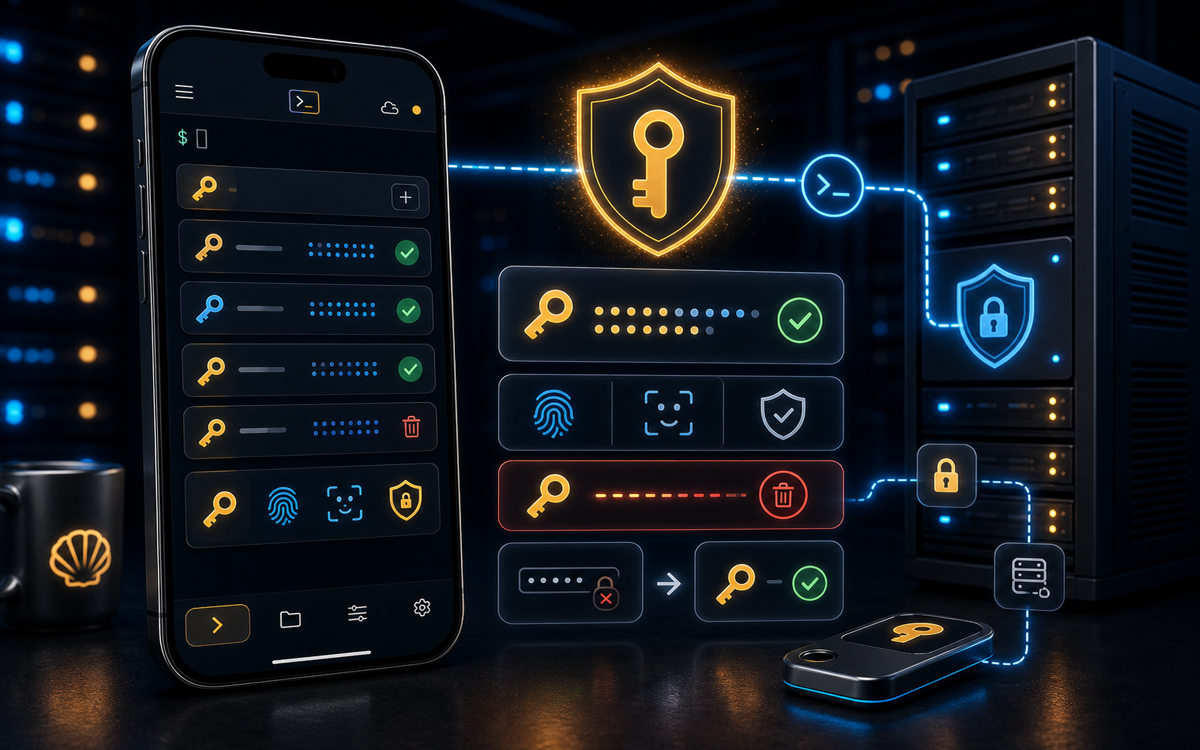
To revoke an SSH key and remove server access, you must delete the key from the server's authorized_keys file and restart or reload the SSH service.
Understanding SSH Keys and Their Role in Access
SSH keys are crucial for secure communication between your client and server. They consist of a pair: a public key stored on the server and a private key stored on your client device. When you attempt to connect, the server checks its list of authorized public keys to verify your identity.
Maintaining control over these keys is essential for security. If a private key is compromised, anyone with access to it can potentially access your server. This makes it vital to know how to revoke a key's access promptly.
"SSH keys are your first line of defense for secure server access."
Revoking a key doesn't just mean deleting it from your client. You must also remove it from the server to ensure that the key can no longer be used to gain access.
How to Revoke an SSH Key
Revoking an SSH key involves removing the associated public key from the server's authorized_keys file. This file is typically located in the ~/.ssh/ directory of the user account.
- First, access your server using SSH with a valid key or another method:
ssh user@host- Navigate to the
.sshdirectory:
cd ~/.ssh- Open the
authorized_keysfile in a text editor likenanoorvim:
nano authorized_keys- Find the line containing the public key you wish to revoke and delete it. Save and exit the editor.
"Removing a key from authorized_keys is the definitive way to revoke access."
After these steps, the SSH key will no longer grant access to the server. It's a good practice to backup the authorized_keys file before making changes.
What Happens After Key Revocation?
Once you remove a key from the authorized_keys file, any attempt to connect using the revoked key will be denied. This is because the server no longer recognizes the public key as an authorized entity.
It's essential to ensure that any other keys in use are still valid and have not been mistakenly altered. This ensures uninterrupted access for legitimate users.
On most servers, changes to the authorized_keys file take effect immediately, so there's no need to restart the SSH service. However, it can be beneficial to reload the service to ensure all configurations are up-to-date:
sudo systemctl reload sshdIn some cases, especially on older systems, you might need to restart the service:
sudo systemctl restart sshdHow Does ShellSage Simplify This Process?
Most mobile SSH clients like Termius and JuiceSSH require you to manually edit files and restart services without any additional guidance. ShellSage offers an AI assistant, Sage, which can explain output and guide you through the process, making it easier to revoke keys directly from your phone.
ShellSage's blast-radius preview feature is particularly useful before running commands that might affect server access, ensuring you don't inadvertently lock yourself out.
When Should You Revoke an SSH Key?
Revoke an SSH key immediately if you suspect it has been compromised or if a user with access should no longer have it, such as when an employee leaves the organization.
Regularly auditing your SSH keys and revoking those no longer in use helps maintain server security. This proactive approach minimizes vulnerabilities that could be exploited by attackers.
During an audit, pay attention to keys that have not been used for an extended period. These might indicate access that is no longer necessary.
⚡ Key takeaways
- ›Revoking an SSH key requires removing it from the server's authorized_keys file.
- ›ShellSage offers AI assistance to simplify key revocation from mobile devices.
- ›Regularly audit and revoke unused SSH keys to maintain server security.
