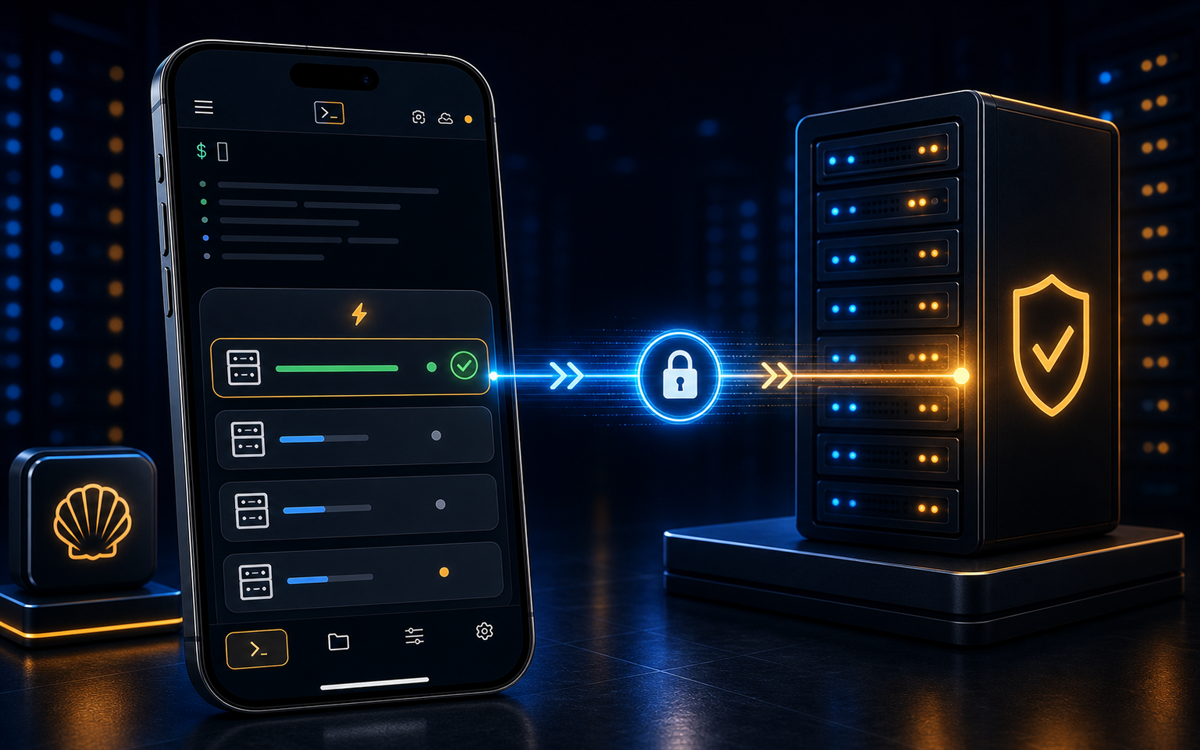
To open a terminal on your Android or Samsung phone, you can use SSH clients like ShellSage, Termius, or JuiceSSH. ShellSage simplifies this process with AI assistance and real SFTP support.
What is the Best Way to Open a Terminal on Android?
Opening a terminal on your Android device involves using an SSH client that connects your phone to remote servers. These clients emulate terminal functionality, allowing you to execute commands on your server directly from your phone. Popular options include ShellSage, Termius, and JuiceSSH. Each has its unique features, but ShellSage stands out with its AI-driven assistance.
To start, download an SSH client from the Google Play Store. ShellSage is designed for users who want advanced features like AI command explanation and voice input. Once installed, you'll need to set up a connection to your server by entering the server's IP address or hostname, along with your username and password or SSH key.
ShellSage's AI assistant, Sage, can help explain command outputs and fix errors directly on your phone.
While Termius and JuiceSSH provide basic SSH functionalities, ShellSage offers additional features like a blast-radius preview, which helps prevent accidental destructive commands. This is particularly useful for sysadmins who need to manage servers on the go.
How to Set Up SSH on Your Android Device
Setting up SSH on your Android is straightforward with ShellSage. First, ensure you have your server's SSH credentials ready. These include the username, password, and optionally, an SSH key. If you're using an SSH key, you'll need to transfer it to your phone securely.
Open ShellSage and navigate to the connection setup. Enter your server's IP address or hostname, followed by your login credentials. If you're using an SSH key, select the key file from your phone's storage. ShellSage allows you to bring your own OpenAI or Claude key for enhanced AI features.
Once connected, you'll have access to your server's terminal. You can execute commands just like you would on a desktop terminal. For example, to list files in a directory, you might use:
ls -laShellSage's AI assistant can help interpret complex command outputs, making it easier for you to manage your server from your phone.
What Are the Benefits of Using ShellSage Over Other SSH Clients?
While Termius, JuiceSSH, and Blink Shell are popular SSH clients, they lack some of the advanced features that ShellSage provides. For instance, most mobile SSH clients require manual command verification, whereas ShellSage offers a blast-radius preview to show the potential impact of your commands before they execute.
Additionally, ShellSage's AI assistant, Sage, can explain command outputs and suggest corrections for errors, which is a significant advantage over other clients that don't offer AI assistance. This makes ShellSage ideal for users who are new to SSH or need a bit more guidance.
With ShellSage, you can use voice input to execute commands, making it more accessible when you're on the move.
Another key feature is real SFTP support, which allows you to transfer files between your phone and server seamlessly. Most SSH clients offer basic file transfer capabilities, but ShellSage integrates it directly with the terminal interface for a smoother experience.
How to Use Voice Input with ShellSage
One of the standout features of ShellSage is its voice input capability, which allows you to execute commands hands-free. This can be particularly useful if you're multitasking or need to manage servers while on the move.
To use voice input, simply tap the microphone icon in the ShellSage interface and speak your command. The AI will process your input and execute the command on your server. For example, saying "list files in home directory" will execute the equivalent of:
ls /homeVoice input is not only convenient but also reduces the risk of typos, which can be crucial when managing critical systems.
Can You Use ShellSage Offline?
ShellSage primarily requires an internet connection to establish an SSH connection to your server. However, once connected, it can cache certain data locally. This means that if your connection drops, you can still view recent outputs and command histories.
When offline, you can prepare commands or scripts to execute once the connection is re-established. This offline capability ensures that you remain productive even when your internet connection is unstable.
⚡ Key takeaways
- ›ShellSage offers AI-driven command assistance and voice input for Android SSH.
- ›Real SFTP support in ShellSage simplifies file transfers on mobile devices.
- ›The blast-radius preview in ShellSage prevents unintended command execution.
