To keep an SSH connection alive, configure ServerAliveInterval and ServerAliveCountMax on the client-side, or ClientAliveInterval and ClientAliveCountMax on the server-side, and use tmux or screen for long-running sessions.
Understanding SSH Connection Timeouts
SSH connections can drop if they remain idle for too long. This is often due to network configurations or server settings that close idle sessions to conserve resources. For developers and sysadmins, an unexpected drop can disrupt workflows, especially during long-running tasks.
The SSH protocol allows for configurations that help maintain these connections. On the client side, you can use the ServerAliveInterval and ServerAliveCountMax options in your ~/.ssh/config file. ServerAliveInterval specifies the time in seconds between sending a message to the server to keep the connection alive, while ServerAliveCountMax determines the number of times the client sends the keep-alive message without getting a response before giving up.
On the server side, similar settings exist: ClientAliveInterval and ClientAliveCountMax in the sshd_config file. These settings control the server's behavior in terms of keeping the connection open.
Configuring keep-alive settings prevents unexpected SSH session drops.
How Can You Configure SSH Keep-Alive Settings?
To configure SSH keep-alive settings on the client side, edit your ~/.ssh/config with the following:
Host *
  ServerAliveInterval 60
  ServerAliveCountMax 3
This configuration sends a keep-alive message every 60 seconds and allows up to 3 missed responses before the connection is closed. You may adjust these values based on your network reliability and needs.
For server-side configuration, you'll need to edit /etc/ssh/sshd_config with:
ClientAliveInterval 60
ClientAliveCountMax 3
After making changes to sshd_config, restart the SSH service to apply them:
sudo systemctl restart sshdThese settings ensure your SSH connection remains active even during periods of inactivity, reducing the chance of unexpected disconnects.
Using Terminal Multiplexers for Long-Running Tasks
Even with keep-alive settings configured, network issues can still cause disconnections. To safeguard long-running tasks, use tools like tmux or screen. These terminal multiplexers allow you to detach and reattach to sessions, preserving the state of your terminal.
After logging into your server, start a tmux session by simply typing:
tmuxYou can detach from the session with Ctrl-b followed by d, and later reattach with:
tmux attachThis way, even if your SSH connection drops, the processes inside the tmux session continue running, and you can reattach to pick up right where you left off.
Terminal multiplexers like tmux keep your tasks running despite network interruptions.
How Does ShellSage Keep Your SSH Connection Alive?
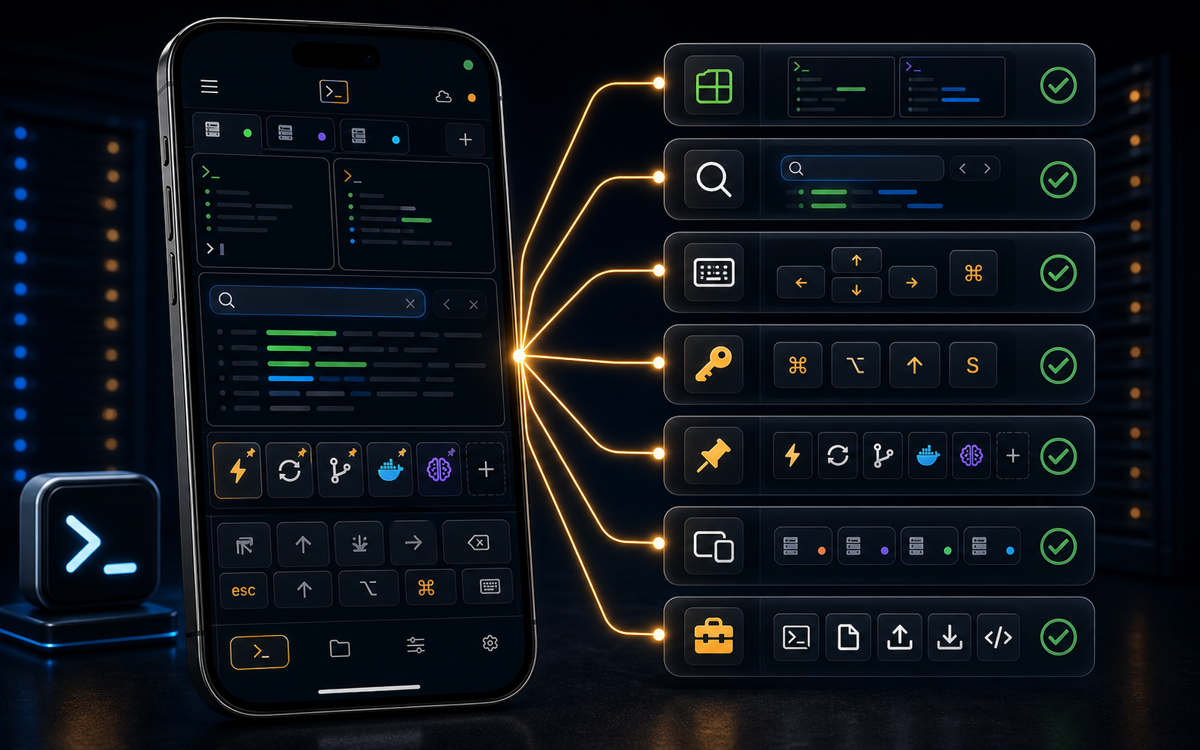
ShellSage enhances the SSH experience on mobile by managing background connections efficiently. On Android, a connected session remains alive even if you leave the app or lock your phone, thanks to a foreground service that displays a "ShellSage session active" notification. This ensures that long-running jobs keep going in the background and only disconnect after about 10 minutes of idle time at a bare prompt. You will receive a 2-minute warning to stay connected before this happens.
On iOS, the operating system restricts long-running background networking, causing the session to drop when the app is backgrounded. However, ShellSage automatically reconnects when you reopen it. For uninterrupted tasks, you should run tmux or screen on the server, allowing the session to resume upon reconnecting.
ShellSage also allows you to save preset commands, like a keep-alive or tmux attach, in its Quick Presets, enabling you to re-establish a long-running session instantly.
How Does ShellSage Compare to Other Mobile SSH Clients?
While apps like Termius and JuiceSSH provide basic SSH connectivity, they often require manual configuration to maintain connections. ShellSage simplifies this with its AI assistant, Sage, which can explain output and fix commands, and a blast-radius preview to prevent dangerous commands from executing without review.
Unlike other clients, ShellSage's ability to keep sessions alive on Android and its automatic reconnection feature on iOS offer enhanced reliability for mobile SSH users. The integration of voice input and real SFTP further distinguishes ShellSage as a comprehensive mobile SSH client.
Most mobile SSH clients don't offer the same level of automation and convenience, making ShellSage an ideal choice for those who need a robust SSH solution on their phone.
⚡ Key takeaways
- ›Configure keep-alive settings to prevent SSH session drops.
- ›Use tmux or screen to manage long-running tasks safely.
- ›ShellSage offers unique features for maintaining SSH sessions on mobile.
