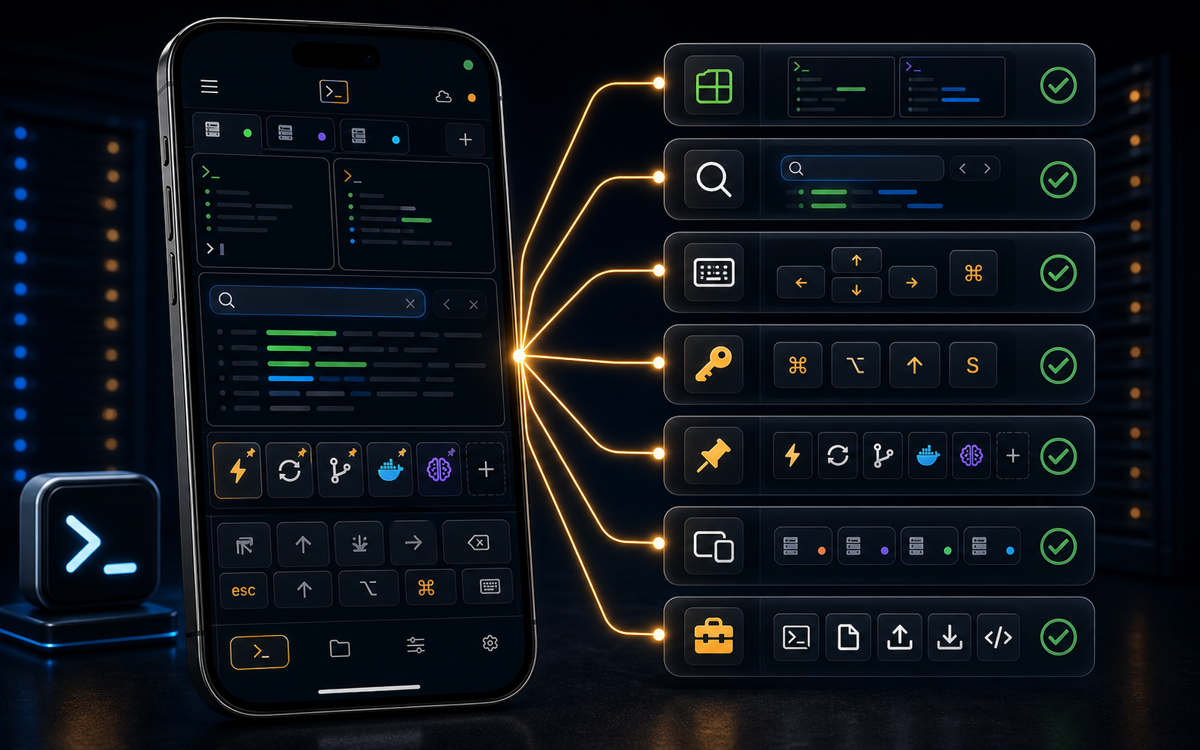
To customize the top-row keys on the ShellSage keyboard, open the key mapper and select which keys to display around the arrow cluster. This enhances your SSH workflow by tailoring the interface to your needs.
Why Customize Your ShellSage Keyboard?
When working with SSH on your phone, efficiency is key. The default keyboard layout may not suit everyone's workflow, especially when performing repetitive tasks. Customizing the top-row keys on the ShellSage keyboard can significantly streamline your process by placing the most used keys at your fingertips.
For instance, if you frequently use Esc to cancel operations or Ctrl+C to terminate commands, having these keys readily accessible can save valuable time. This customization allows you to tailor the keyboard to your specific needs, enhancing productivity and reducing frustration.
Customizing your keyboard layout saves time and enhances productivity.
Unlike traditional mobile SSH clients, ShellSage offers an intuitive way to adjust these settings directly within the app, making it a more flexible tool for sysadmins and developers on the go.
How to Access the Key Mapper
Accessing the key mapper in ShellSage is straightforward. This feature allows you to choose which keys appear on the top row around the arrow cluster, except for the mic key, the keyboard show/hide key, and the arrow cluster, which are fixed.
To access the key mapper, open ShellSage on your phone and navigate to the terminal interface. Tap on the "Customize Keyboard" option to open the key mapper. Here, you'll see a list of keys such as Esc, ^C, Clr, Tab, Shift-Tab, Select, and Paste. Simply tap on a key to add or remove it from the top row. Changes apply instantly and will persist across sessions.
Tap keys to add or remove them; changes apply and persist live.
This live updating feature ensures you can experiment with different layouts without needing to restart the app or session, a convenience not offered by all SSH clients.
What Are the Best Keys to Include?
The choice of keys depends on your typical SSH tasks. However, there are some general recommendations that can enhance most workflows. Including Esc is useful for exiting modes or canceling operations quickly. Ctrl+C is essential for terminating processes, especially when scripts hang or commands need to be stopped immediately.
If you often navigate through directories or files, Tab for auto-completion is indispensable. For those working with text editors like Vim, having Shift-Tab can aid in navigating through tabs or different sections of code.
Additionally, consider adding Select and Paste if you frequently copy and paste text, as these keys streamline the process, especially when working with configuration files or command outputs.
When Should You Use Voice Input?
ShellSage's voice input feature is a powerful tool when your hands are occupied or typing is inconvenient. While customizing your keyboard layout maximizes efficiency, voice input can complement this by allowing you to execute commands without touching the screen.
To use voice input, tap the mic key on your keyboard. This feature is particularly useful for long commands or when you're multitasking. It's an advantage over other SSH clients like Termius and JuiceSSH, where voice input might not be as integrated or intuitive.
However, while voice input is convenient, it may not be suitable for all environments, such as noisy areas where voice recognition might struggle. In these cases, having a well-customized keyboard layout ensures you can still operate efficiently.
How Does ShellSage Compare to Other SSH Clients?
Most SSH clients, including Termius and Blink Shell, offer basic customization options but often lack the live updating and intuitive interface that ShellSage provides. With ShellSage, changes to the keyboard layout are applied instantly and persist across sessions without needing to restart or refresh your connection.
Additionally, ShellSage's AI assistant, Sage, can explain command outputs and suggest fixes, which is not a standard feature in other clients. This makes ShellSage particularly user-friendly and efficient for both new and experienced users.
Other clients may require more manual configuration or lack features like voice input and blast-radius previews, making ShellSage a more comprehensive tool for managing SSH connections on the go.
- Customizing your keyboard layout saves time and enhances productivity.
- ShellSage offers live updates for keyboard changes, unlike other clients.
- Voice input and AI assistance make ShellSage unique among SSH clients.
⚡ Key takeaways
- ›Customizing your keyboard layout saves time and enhances productivity.
- ›ShellSage offers live updates for keyboard changes, unlike other clients.
- ›Voice input and AI assistance make ShellSage unique among SSH clients.
