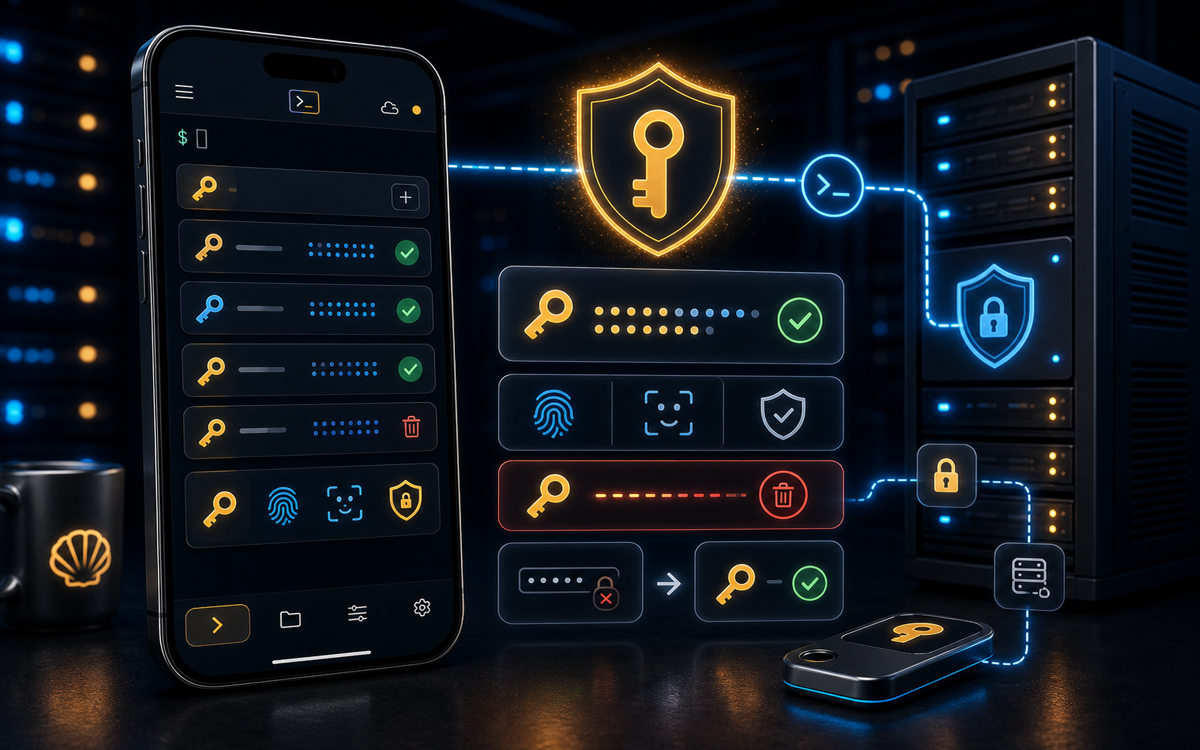
To copy your SSH public key to a server, use the ssh-copy-id command, which simplifies the process of adding your public key to the server's authorized keys.
What is ssh-copy-id?
The ssh-copy-id command is a handy utility available on most Unix-like systems. It automates the process of copying your SSH public key to a remote server's ~/.ssh/authorized_keys file. This allows you to log in without a password, enhancing security and convenience.
Using ssh-copy-id saves time and minimizes errors when setting up SSH key-based authentication.When you run ssh-copy-id, it handles the following tasks:
- Copies your public key to the remote server.
- Creates the
~/.sshdirectory if it doesn't exist. - Ensures the correct permissions are set on the
~/.sshdirectory and theauthorized_keysfile.
This command is especially useful for system administrators and developers who frequently need to access multiple servers securely.
How to Use ssh-copy-id
Using ssh-copy-id is straightforward. Ensure you have your SSH public key generated. If not, you can create one using ssh-keygen.
ssh-keygen -t rsa -b 4096 -C "your_email@example.com"This command generates a new SSH key pair. The default location for the keys is ~/.ssh/id_rsa for the private key and ~/.ssh/id_rsa.pub for the public key. Once you have your public key, you can proceed with the ssh-copy-id command.
Here’s how you can copy your public key to a remote server:
ssh-copy-id user@hostnameReplace user with your username on the remote server and hostname with the server's address. You will be prompted for your password on the remote server. After entering it, your public key will be copied, and you should see a message confirming success.
The first time I used ssh-copy-id, I forgot to check if my public key was already on the server. It’s worth verifying before trying to copy again!What If ssh-copy-id Is Not Available?
On some systems, ssh-copy-id may not be installed by default. In such cases, you can manually copy your public key using ssh and cat commands.
First, you can display your public key using:
cat ~/.ssh/id_rsa.pubThen, you can log in to your server:
ssh user@hostnameOnce logged in, create the ~/.ssh directory if it doesn't exist:
mkdir -p ~/.sshNext, append your public key to the authorized_keys file:
echo "your_public_key" >> ~/.ssh/authorized_keysReplace your_public_key with the actual key you displayed earlier. Finally, set the correct permissions for the ~/.ssh directory and the authorized_keys file:
chmod 700 ~/.sshchmod 600 ~/.ssh/authorized_keysThese permissions ensure that only your user can access these files, which is crucial for SSH security.
How to Verify SSH Key Authentication
After copying your public key, it's essential to verify that passwordless SSH is working correctly. You can do this by attempting to log in to the remote server again:
ssh user@hostnameIf everything is set up correctly, you should log in without being prompted for a password. If you still have to enter a password, check the following:
- Ensure the public key is correctly added to the
~/.ssh/authorized_keysfile on the server. - Check the permissions of the
~/.sshdirectory and theauthorized_keysfile. - Verify that the SSH service is running on the server.
Using ShellSage, you can easily check these configurations from your phone. Sage can explain the output of your commands, helping you troubleshoot any issues effectively.
Common Issues and Troubleshooting
Even with the best intentions, issues can arise when setting up SSH key authentication. Here are a few common problems and their solutions:
- Permission Denied (publickey): This error typically means that your public key is not correctly installed on the server. Double-check your
authorized_keysfile and permissions. - SSH Agent Not Running: If you're using an SSH agent to manage your keys, ensure it is running and that your key is added to it. You can add your key using:
ssh-add ~/.ssh/id_rsa- Firewall Rules: Sometimes, the firewall on your server might block SSH connections. Ensure that port 22 is open for incoming traffic.
Using ShellSage, you can quickly check your firewall settings and SSH configurations right from your device. The blast-radius preview feature helps you understand the impact of commands before running them, reducing the risk of misconfiguration.
⚡ Key takeaways
- ›Use <code>ssh-copy-id</code> to simplify key copying to remote servers.
- ›Check permissions on <code>~/.ssh</code> and <code>authorized_keys</code> to avoid issues.
- ›Verify SSH key authentication by logging in without a password.
