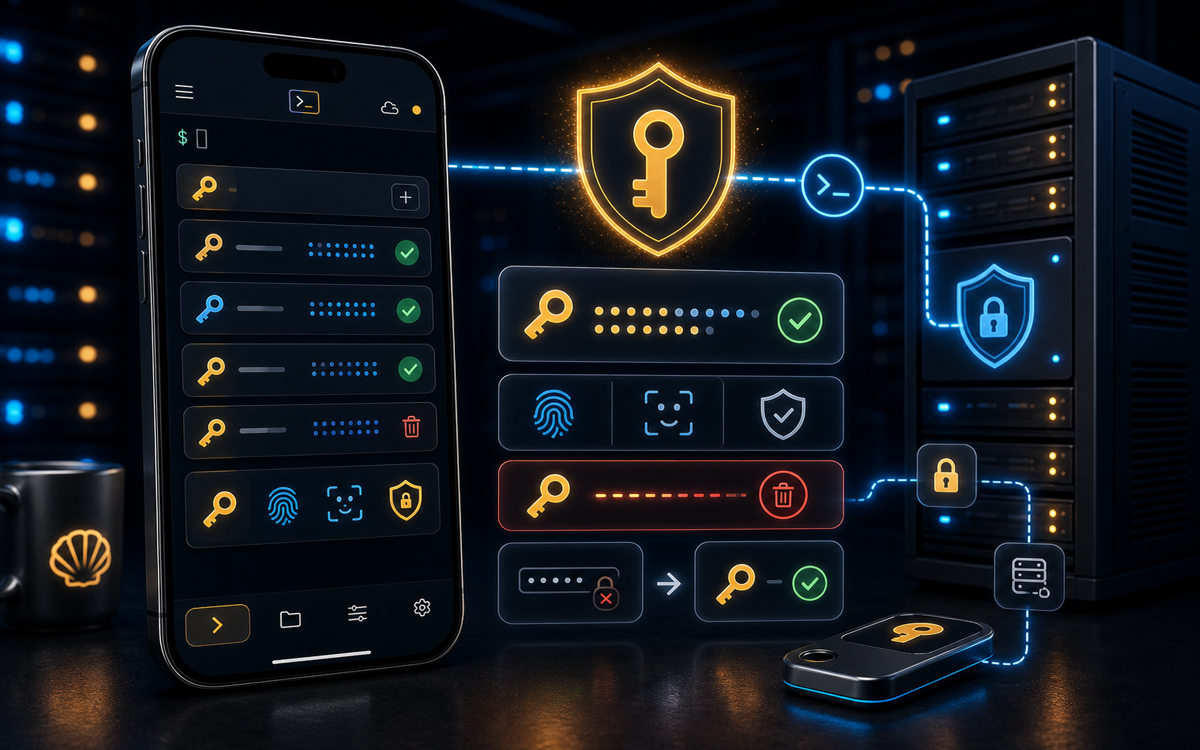
Creating an SSH key on your phone is straightforward with ShellSage, allowing you to securely log into servers without needing a laptop or desktop terminal.
Why Use SSH Keys Instead of Passwords?
SSH keys provide a more secure method of authentication compared to traditional passwords. When you use SSH keys, you generate a pair: a public key and a private key. The public key is stored on the server, while the private key remains securely on your device. This setup not only enhances security but also simplifies the login process, as you no longer need to remember or type in a password.
"SSH keys are more secure than passwords, making them the preferred authentication method for many sysadmins and developers."
One of the main benefits of using SSH keys is that they are resistant to brute-force attacks, which are common with password-based authentication. Even if someone were to obtain your public key, they cannot access your server without the corresponding private key. Additionally, SSH keys can be easily revoked by simply removing the public key from the server, providing a straightforward way to manage access.
How to Generate an SSH Key on Your Phone
With ShellSage, generating an SSH key is easy and can be done entirely on your mobile device. Follow these steps to create your SSH key:
- Open the ShellSage app on your phone.
- Tap on the terminal menu represented by the three-line hamburger icon.
- Select "Generate SSH key" from the options available.
After you tap "Generate SSH key," the app will create a secure SSH key using the ed25519 algorithm, which is known for being modern, fast, and secure. This process takes just a few seconds, and once completed, you will have your new key ready for use.
"ShellSage simplifies the SSH key generation process, allowing you to focus on what matters most: getting your work done."
How to Install Your SSH Key on a Server
Once you have generated your SSH key, you need to install the public key on your server for it to work. If you are already connected to the server via ShellSage, the process is even simpler:
- Tap "Install on
" to automatically add your new public key to the server's ~/.ssh/authorized_keysfile.
This one-tap installation feature is incredibly useful, especially if you are transitioning from password-based logins to key-based authentication. If you are not connected to the server yet, you can still manually copy the public key and add it to the ~/.ssh/authorized_keys file on your server using the following command:
ssh user@host "echo 'your-public-key' >> ~/.ssh/authorized_keys"Replace your-public-key with the actual public key you copied from ShellSage. Using this method ensures your server recognizes your device's private key for future logins.
What Are the Best Practices for Managing SSH Keys?
Managing SSH keys effectively is crucial for maintaining security. Here are some best practices to consider:
- Use Strong Key Types: Always generate keys using a secure algorithm like ed25519, which is recommended for its security and performance.
- Regularly Rotate Keys: Change your SSH keys periodically to minimize the risk of unauthorized access. This is especially important if you suspect that a key may have been compromised.
- Limit Key Access: Only grant access to users and systems that absolutely require it. Use specific public keys for different devices or users rather than a single, shared key.
By following these best practices, you can ensure that your SSH keys remain secure and effective in protecting your systems.
What to Do If You Encounter Issues?
Even with a user-friendly app like ShellSage, you may occasionally run into issues when generating or using SSH keys. If you find that you cannot connect to your server after setting up your SSH key, here are a few troubleshooting steps:
- Check Key Permissions: Ensure that the
~/.ssh/authorized_keysfile on your server has the correct permissions. It should be set to600and the~/.sshdirectory should be set to700. - Verify Key Format: Ensure that your public key is correctly formatted in the
authorized_keysfile. There should be no extra spaces or line breaks. - Use ShellSage's Sage Assistant: If you're still having trouble, you can ask Sage for help. The AI assistant can explain output messages and suggest fixes for common connection issues.
By following these troubleshooting steps, you can quickly resolve issues and get back to work.
⚡ Key takeaways
- ›SSH keys enhance security over traditional passwords.
- ›ShellSage allows for quick SSH key generation on mobile devices.
- ›Best practices include key rotation and limiting access.
