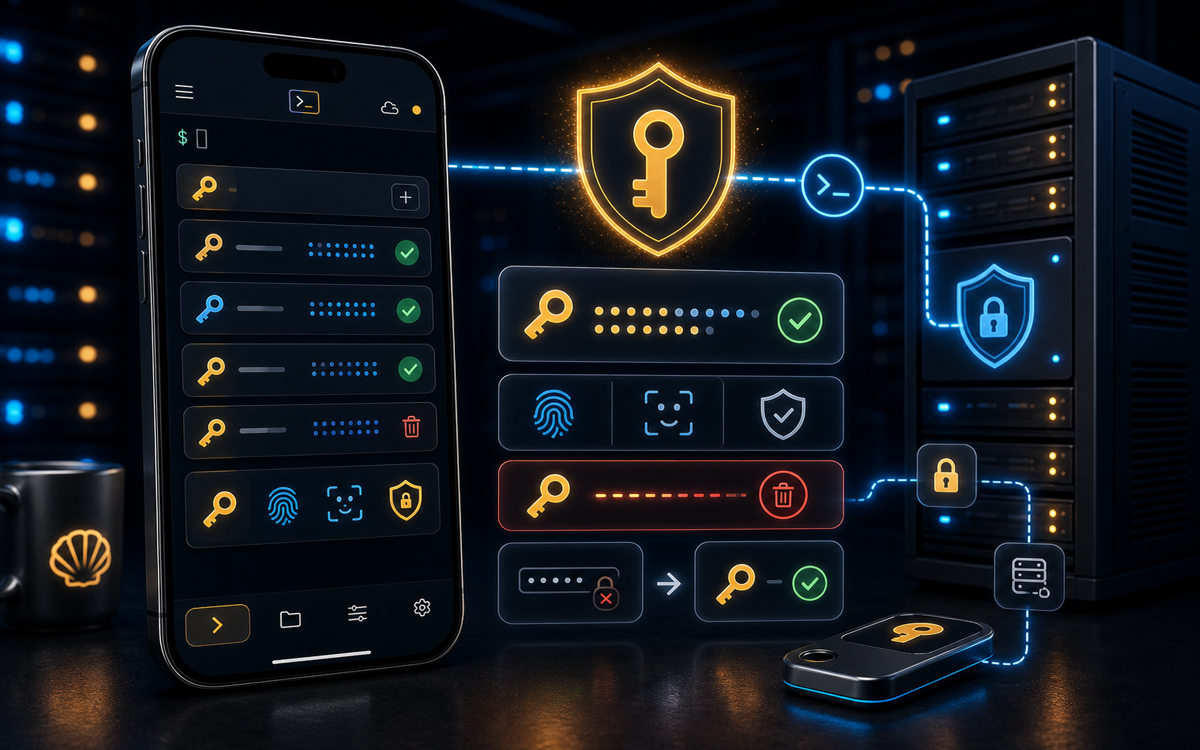
If you've forgotten your SSH key passphrase, you can either create a new key pair or attempt to recover the passphrase using memory aids, password managers, or hints.
Why Is Your SSH Key Passphrase Important?
The SSH key passphrase is a crucial part of securing your private key. It acts as an additional layer of security, ensuring that even if your private key is compromised, unauthorized access is not easily achieved. When you create an SSH key pair, the private key is something you need to protect diligently, and the passphrase is your tool for that protection.
Without a passphrase, anyone with access to your private key file could potentially access any servers it is authorized for. This is why remembering your passphrase is critical. However, if you do forget it, don't panic. There are several strategies you can use to regain access or mitigate the issue.
The SSH key passphrase is your first line of defense. Forgetting it can feel like being locked out of your own house.
What to Do If You Forget Your Passphrase
The first step is to determine whether you have any backup of your key or if you have stored the passphrase in a password manager. If you have a backup, you can restore it and regain access immediately. If not, here are your options:
- Memory Aids: Try to recall any hints or patterns you might have used when creating the passphrase. Sometimes, simply stepping away and coming back with a fresh mind can help jog your memory.
- Password Managers: Check if you've stored your passphrase in a password manager like LastPass or Bitwarden. These tools are invaluable for storing sensitive information securely.
- Recovery Tools: While there are no direct recovery tools for SSH passphrases due to their encryption, you can use tools like 'ssh-agent' to temporarily store passphrase information if you've managed to remember it but need help managing it across sessions.
Unfortunately, if you cannot recover the passphrase, the most effective solution is to generate a new SSH key pair and update your authorized keys on the servers you access.
How to Generate a New SSH Key Pair
If you're unable to recover your passphrase, creating a new SSH key pair is the most straightforward solution. Here's how you can do it:
ssh-keygen -t rsa -b 4096 -C "your_email@example.com"This command generates a new RSA key pair with a bit length of 4096, which is a strong encryption standard. You'll be prompted to enter a new file name for the key and a new passphrase. Make sure to store this passphrase securely this time.
Once you've created the new key, you'll need to add the public key to the ~/.ssh/authorized_keys file on your remote servers. You can do this using the ssh-copy-id command:
ssh-copy-id user@remote_hostCreating a new SSH key pair is often the best way forward if the passphrase is irrecoverable.
How Does ShellSage Help with SSH Key Management?
Managing SSH keys and remembering passphrases can be cumbersome, especially on mobile devices. Most mobile SSH clients like Termius and JuiceSSH provide basic functionalities, but they often require manual handling of keys and passphrases.
ShellSage, however, enhances the experience by integrating an AI assistant, Sage, which can help explain SSH output and assist in troubleshooting passphrase issues. The app also provides a blast-radius preview for potentially dangerous commands, making it safer to manage SSH configurations on the go.
With ShellSage, you can use voice input to streamline command entry, reducing the risk of errors when managing SSH keys from your phone. This feature is something that most traditional mobile SSH clients do not offer.
Can You Recover a Forgotten SSH Key Passphrase?
Unfortunately, there is no straightforward method to recover a forgotten SSH key passphrase, as it is designed to be secure. This is both a blessing and a curse. The security ensures that unauthorized users cannot easily access your SSH keys, but it also means that if you forget your passphrase, you are locked out.
However, by using password managers and regularly updating your key pairs, you can mitigate the risks associated with forgotten passphrases. It's also wise to keep a backup of your keys in a secure location.
ShellSage can aid in managing these backups and provide explanations on how to securely handle SSH keys, making it a valuable tool for sysadmins and developers who need to manage SSH keys on the go.
⚡ Key takeaways
- ›If you forget your SSH key passphrase, creating a new key pair is often the best solution.
- ›Using a password manager can help prevent passphrase loss in the future.
- ›ShellSage offers unique features like AI assistance and voice input to simplify SSH key management on mobile.
