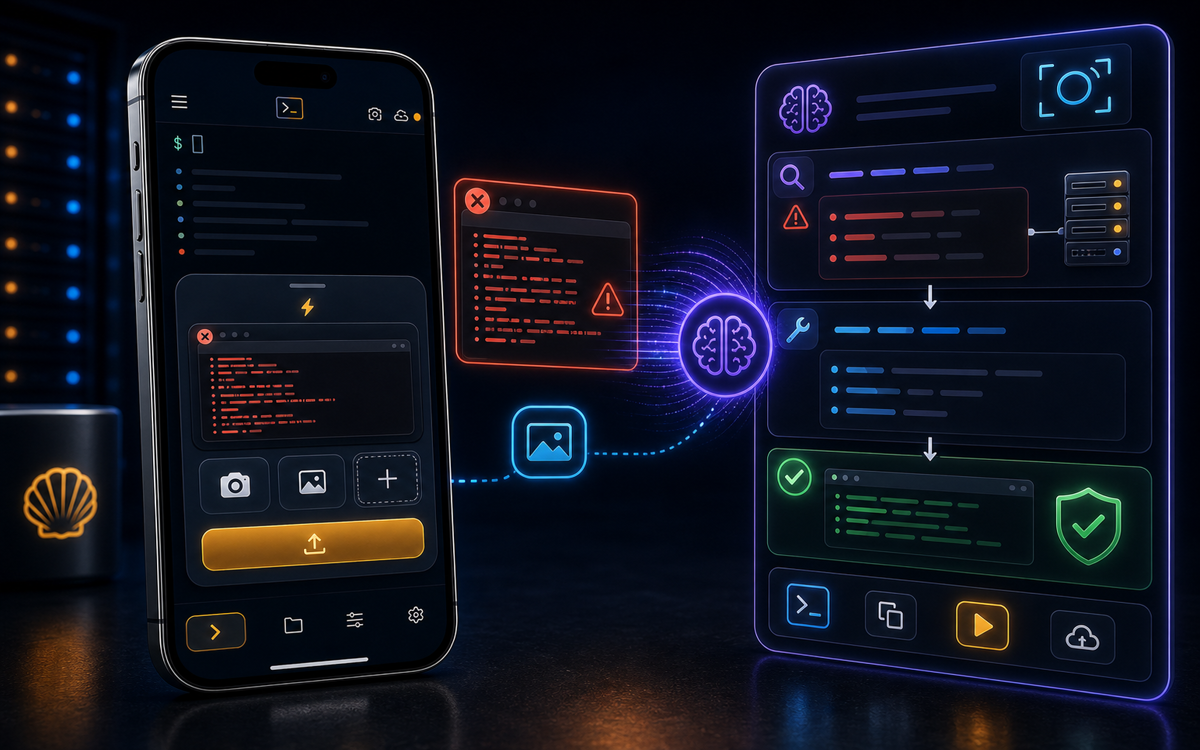
To diagnose SSH errors on your screen with AI, use ShellSage's Sage feature, which reads the SSH output, flags errors, and recommends fixes in real time without needing to copy-paste.
Understanding SSH Errors
SSH errors can stem from a variety of issues including network problems, authentication failures, or incorrect configurations. These errors often appear as cryptic messages in your terminal, leaving you to decipher their meaning and find a solution. Common errors include 'Connection refused', 'Permission denied', and 'Host key verification failed'. Each of these indicates a different problem that needs addressing.
For example, 'Connection refused' typically means the SSH server isn't running on the target machine or the port is incorrect. 'Permission denied' usually points to an authentication issue, whereas 'Host key verification failed' suggests a mismatch in the server's key, possibly due to a server change or a man-in-the-middle attack.
SSH errors can stem from network problems, authentication failures, or incorrect configurations.
Understanding these messages is crucial for troubleshooting, but manually digging through logs and error codes can be cumbersome, especially on mobile devices. This is where ShellSage's AI-driven Sage feature comes into play, offering a more streamlined approach.
How Does ShellSage Diagnose SSH Errors?
ShellSage is an advanced mobile SSH client that simplifies diagnosing SSH errors by using its built-in AI assistant, Sage. Unlike other SSH clients like Termius or JuiceSSH that require you to manually interpret error messages, ShellSage reads the SSH prompts and output visible on your screen. Sage flags any errors it detects and recommends solutions in real time.
This process is seamless with ShellSage. When you encounter an error, simply ensure the output is visible on your screen. Sage will automatically analyze the information and provide detailed explanations and potential fixes. No need to copy and paste error messages into a search engine.
Sage flags any errors it detects and recommends solutions in real time.
Most SSH clients require manual intervention to address errors, but ShellSage's AI capability means you can diagnose issues more quickly and efficiently, especially useful when handling tasks on the go.
How to Use ShellSage to Diagnose SSH Errors
To utilize ShellSage for diagnosing SSH errors, follow these straightforward steps:
- Open the ShellSage app on your mobile device.
- Establish an SSH connection using a command like
ssh user@host. - Perform your desired actions. If an error occurs, ensure the error message is visible on your screen.
- Sage will automatically detect and read the error message, providing a diagnosis and potential solutions directly on your screen.
For example, if you encounter a 'Permission denied' error, Sage might suggest checking your username and password or verifying your SSH key permissions. This on-the-spot assistance saves you time and reduces the frustration of troubleshooting manually.
What If Sage Can't Solve the Problem?
While Sage is adept at diagnosing many common SSH errors, there might be instances where the issue is beyond its current capabilities. In such cases, ShellSage provides a blast-radius preview feature that can help you assess the potential impact of more complex commands before executing them. This feature is particularly useful in preventing further issues when attempting to resolve an error manually.
Moreover, Sage offers voice input, which can be a valuable tool when you need to quickly describe an issue or command without typing. This feature is particularly beneficial when you're working on your phone and need to keep your hands free.
Should Sage be unable to resolve your issue, it still provides a starting point by identifying the error and suggesting initial steps, such as checking server logs or network configurations.
How Does ShellSage Compare to Other Mobile SSH Clients?
When comparing ShellSage to other mobile SSH clients like Termius and Blink, a key differentiator is its AI-driven error diagnosis. Most SSH clients require users to manually search for solutions or interpret error messages themselves. Termius and JuiceSSH, for instance, offer robust SSH capabilities but lack the integrated AI assistance that ShellSage provides.
ShellSage's Sage feature, along with its blast-radius preview and voice input, offers a more advanced and intuitive solution for diagnosing and resolving SSH errors directly on your phone. This makes it a powerful tool for sysadmins and developers who need to manage servers remotely without the hassle of traditional troubleshooting methods.
By providing real-time error analysis and solutions, ShellSage sets itself apart as a truly AI-first SSH client designed for ease of use on mobile devices.
⚡ Key takeaways
- ›ShellSage's Sage AI analyzes and suggests fixes for SSH errors in real time.
- ›Unlike most mobile SSH clients, ShellSage offers AI-driven error diagnosis.
- ›The blast-radius preview helps assess command impacts before execution.
