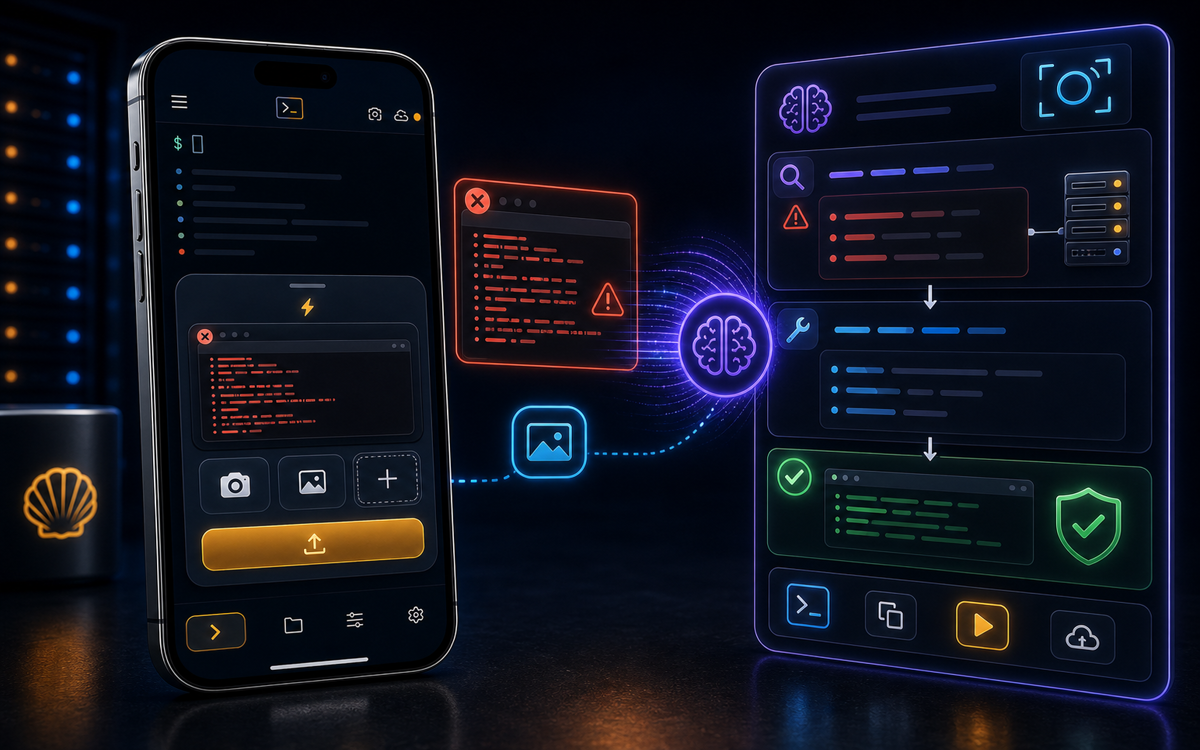
To diagnose command-line errors using ShellSage, you can upload a screenshot or photo and ask the AI assistant, Sage, to analyze it. This feature simplifies troubleshooting by providing plain English explanations of errors.
How Does the Screenshot Upload Feature Work?
The screenshot upload feature in ShellSage allows you to diagnose problems by visually sharing what you see on your terminal. You can upload an image of your terminal output or error messages directly from your phone. This is particularly useful when you're on the go and need quick assistance without having to type out complex error messages.
When you tap the image button located in the right-edge column of the ShellSage interface, you can choose a screenshot or photo from your device. Once uploaded, you have two options: to ask Sage about it or save it onto the server. The first option is the most commonly used, as it opens a direct conversation with Sage, the built-in AI advisor, who will analyze the image and provide insights.
"Sage helps translate complex error messages into plain English, making troubleshooting much easier."
After selecting an image, Sage will examine the content and return responses that explain what might be wrong, regardless of the server you are connected to. This means you don’t need to have any AI tools installed on the server itself for this feature to work. Simply upload the image, and Sage will do the rest.
What Types of Errors Can You Diagnose?
You can use the screenshot upload feature to diagnose a wide range of errors, including syntax errors, permission issues, or command not found messages. For instance, if you receive a "permission denied" error when trying to execute a command, taking a screenshot of that terminal output can help Sage pinpoint the problem.
Another common scenario is when a command fails due to incorrect syntax. Instead of trying to remember the exact command you typed, simply take a screenshot and let Sage analyze it. This is particularly useful when you're running a script or a command that has multiple options and flags.
"By using screenshots, I save time and avoid the frustration of typing out lengthy error messages."
Moreover, the feature is beneficial when you encounter issues with configuration files or system logs. Often, these outputs can be verbose and hard to understand. With Sage, you can get a concise explanation of what the problem is and how to fix it, making it a valuable tool for developers and sysadmins alike.
How to Upload a Screenshot in ShellSage
To upload a screenshot in ShellSage, follow these simple steps:
- Open the ShellSage app on your phone.
- Connect to your desired server using SSH with the command:
ssh user@host- Once connected, tap the image button located in the right-edge column of the terminal interface.
- Choose a screenshot or photo from your device that contains the error message or terminal output you want to diagnose.
- After the image uploads, select the option "Ask Sage about it."
Once you make this selection, Sage will start analyzing the image. Keep in mind that Sage works in real time, so you can expect a response almost immediately. This quick turnaround can be particularly helpful during time-sensitive tasks or when you're troubleshooting in a production environment.
What Happens After You Upload the Image?
After you upload the image and ask Sage for assistance, the AI will provide you with a plain English explanation of the error or issue depicted in the screenshot. This response will typically include an overview of what went wrong and suggestions for how to fix it.
For example, if you uploaded an image showing a compilation error in a code file, Sage might explain the specific line causing the issue and offer advice on how to resolve it. This streamlined feedback can significantly reduce the time spent on diagnosing issues, allowing you to focus on implementing fixes.
"Sage's ability to interpret screenshots saves me from hours of searching through documentation."
Additionally, if you choose the option to "Save onto this server," the uploaded image will be downloaded to the `/tmp/shellsage/` directory on the server you are connected to. This is useful if you have an AI command-line tool installed on that server, such as Claude Code or the Codex CLI, which can further analyze the file. However, this option is less common since most users prefer to interact with Sage directly for immediate feedback.
What Should You Consider for Privacy and Security?
When using the screenshot upload feature, it's important to keep in mind the privacy and security implications. ShellSage ensures that all uploaded images are stored privately for 24 hours before being automatically deleted. This means that your sensitive information won’t linger on the servers long-term, which is crucial in maintaining security, especially when dealing with server configurations or proprietary code.
However, always be cautious about what you upload. If the screenshot contains sensitive information such as passwords, API keys, or personal data, consider obscuring that information before uploading. While ShellSage takes steps to protect your privacy, it's still best practice to avoid sharing sensitive data whenever possible.
"Being mindful of what I upload helps me maintain security while still getting the assistance I need."
In summary, the screenshot upload feature in ShellSage is a powerful tool for diagnosing command-line errors quickly and effectively. By leveraging Sage's capabilities, you can save time and reduce frustration when troubleshooting issues on your server.
⚡ Key takeaways
- ›Easily diagnose command-line errors by uploading screenshots.
- ›Sage provides plain English explanations of errors, saving time.
- ›Uploaded images are stored privately for 24 hours, ensuring security.
