
To manage files over SFTP on mobile with ShellSage, open the built-in file browser from a connected session, then use the toolbar and the three-dot menu to copy, move, download as a ZIP, share, or delete the items you pick. The tutorial video below walks through the file browser, the terminal quick actions, and the built-in AI helper, and the written steps cover each file operation so you can follow along at your own pace.
How do you open the SFTP file browser on mobile?
Once you are connected to a server in ShellSage, look for the folder icon in the top bar of the session. Tapping it opens the Files screen, a full SFTP file browser that lists every folder and file in the current directory. Each row shows the name, the Unix permissions, the size, and the last modified date, so you can read a directory the same way you would over a desktop client. A breadcrumb at the top keeps track of where you are, and a large Open terminal here button sits at the bottom for when you want to drop back into the shell at that exact path.
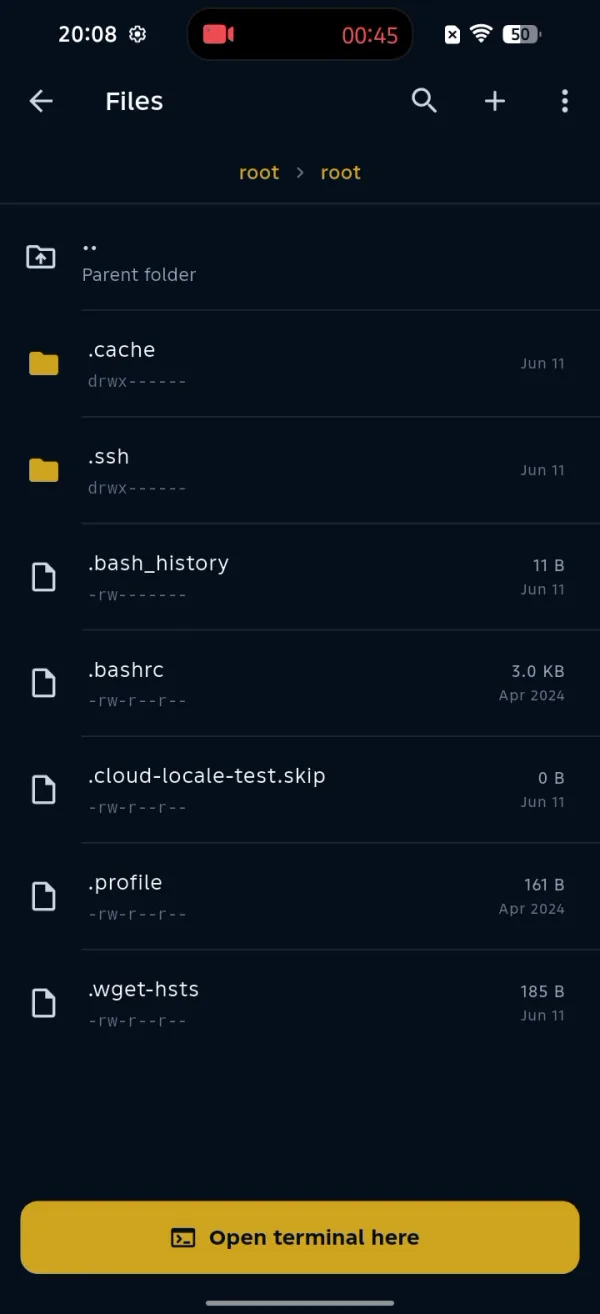
The file browser turns your phone into a proper SFTP client, not just a terminal.
How do you move between folders over SFTP?
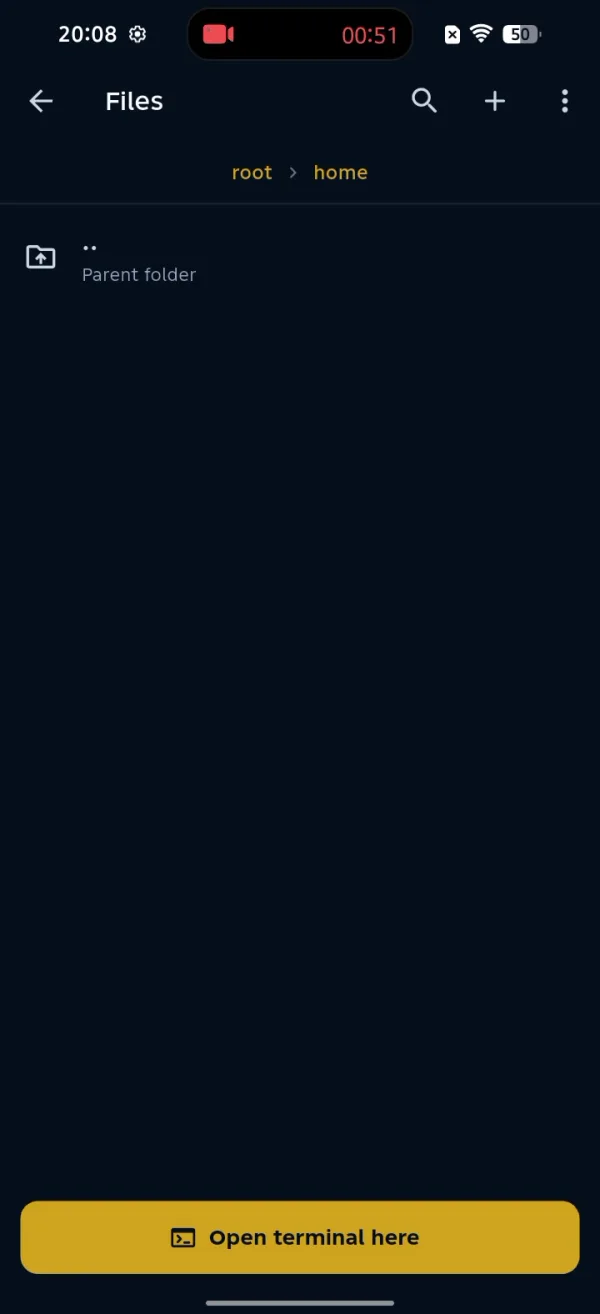
Navigation in the Files browser is built for one hand. Tap any folder row to open it, and the breadcrumb at the top updates to show your new location. To go back up a level, tap the Parent folder row at the top of the list. When you reach the directory you want to work in, the Open terminal here button drops you straight into a shell at that path, which is handy when a quick command is faster than tapping through menus.
How do you select, copy and move files?
File operations start with a selection. Long press any file or folder to enter selection mode, then tap more rows to add them to your selection. With items selected, open the three-dot menu in the top bar to reach the actions: Copy, Move, Download, Share, and Delete. Choose Copy to duplicate the items, or Move to relocate them.
To finish a copy or move, browse to the destination folder. A Paste bar appears at the top of the screen so it is clear the action is ready, and tapping it completes the transfer. This makes it simple to reorganise files across directories without ever leaving your phone.
Copy duplicates your files and move relocates them, so pick the one that matches the job.
How do you download files as a ZIP archive?
Downloading is most useful when you grab several files at once. After selecting the files or folders you want, open the three-dot menu and choose Download ZIP. ShellSage compresses the selection into a single ZIP archive and saves it to your device, so you avoid a stream of separate downloads and keep everything in one tidy file. When the download finishes, the ZIP lands in your phone default download location, ready to open or forward.
How do you upload files from your phone?
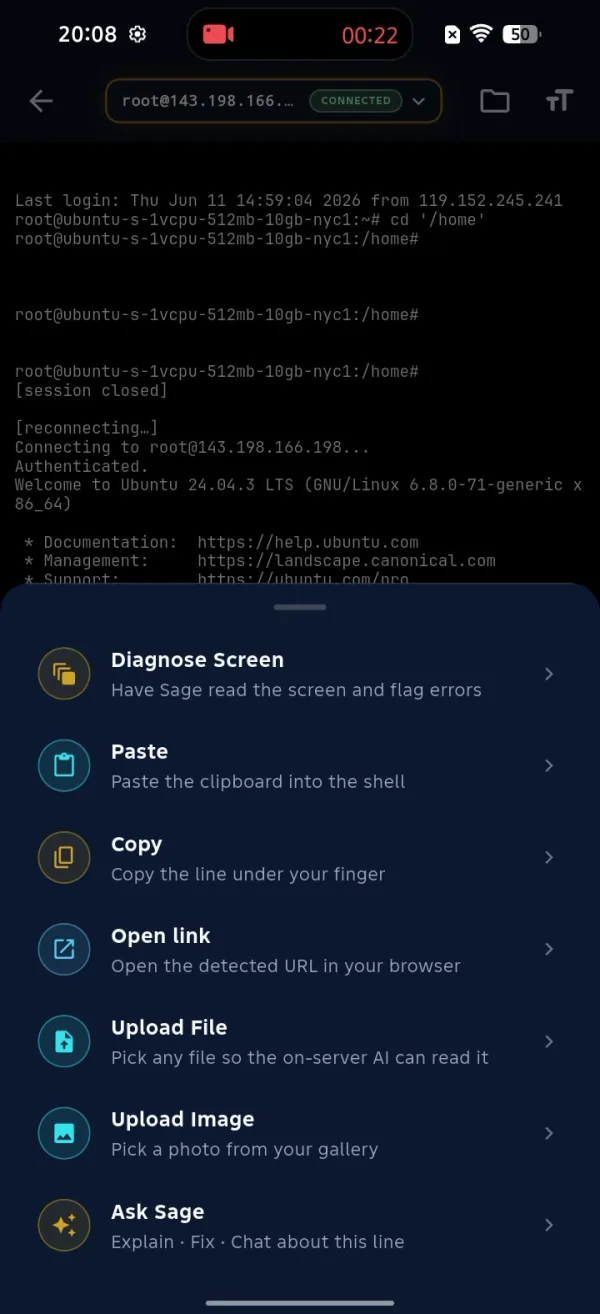
Uploading runs from the terminal side. Long press anywhere on the terminal screen to open the quick actions menu. Alongside Diagnose Screen, Paste, Copy and Open link, you get Upload File and Upload Image. Pick a file or a photo from your phone and ShellSage sends it to the directory your session is currently in, so dropping a config file or a screenshot onto your server takes a couple of taps.
Can the AI helper find file commands for you?
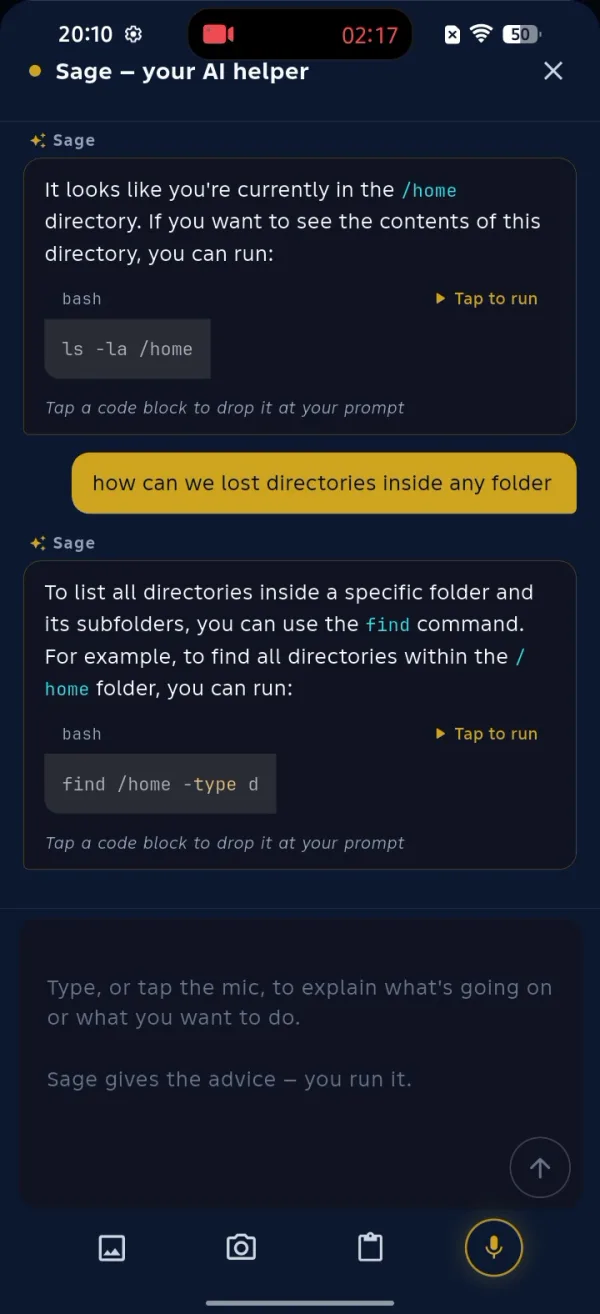
If you are not sure which command to run, the built-in Ask Sage helper can suggest one. Ask it in plain language, for example how to list directories inside a folder, and Sage replies with a ready command such as ls -la /home or find /home -type d, each with a Tap to run button. You stay in control because Sage proposes the command and you decide whether to run it, which is a safe way to learn the right command while you manage files on the go.
How do you share or delete files?
Sharing sends files out of ShellSage. Select the files you want, open the three-dot menu, and choose Share to pass them to other apps on your phone, such as email or a cloud drive. Deleting works the same way: select the items, open the three-dot menu, and choose Delete. A confirmation prompt appears first, because deletions over SFTP are permanent and there is no recycle bin to fall back on.
Conclusion
ShellSage gives you a real SFTP workflow on your phone. You can browse server directories, copy and move files, download a selection as a ZIP, upload from your device, and lean on the AI helper when you need the right command. Whether you are a developer, a sysadmin, or an SRE, it keeps full file management one tap away while you are away from your desk.
⚡ Key takeaways
- ›Selecting files is intuitive with long-press functionality.
- ›Copying and moving files is easily done through a simple menu.
- ›Downloading as ZIP archives keeps your downloads organized.
