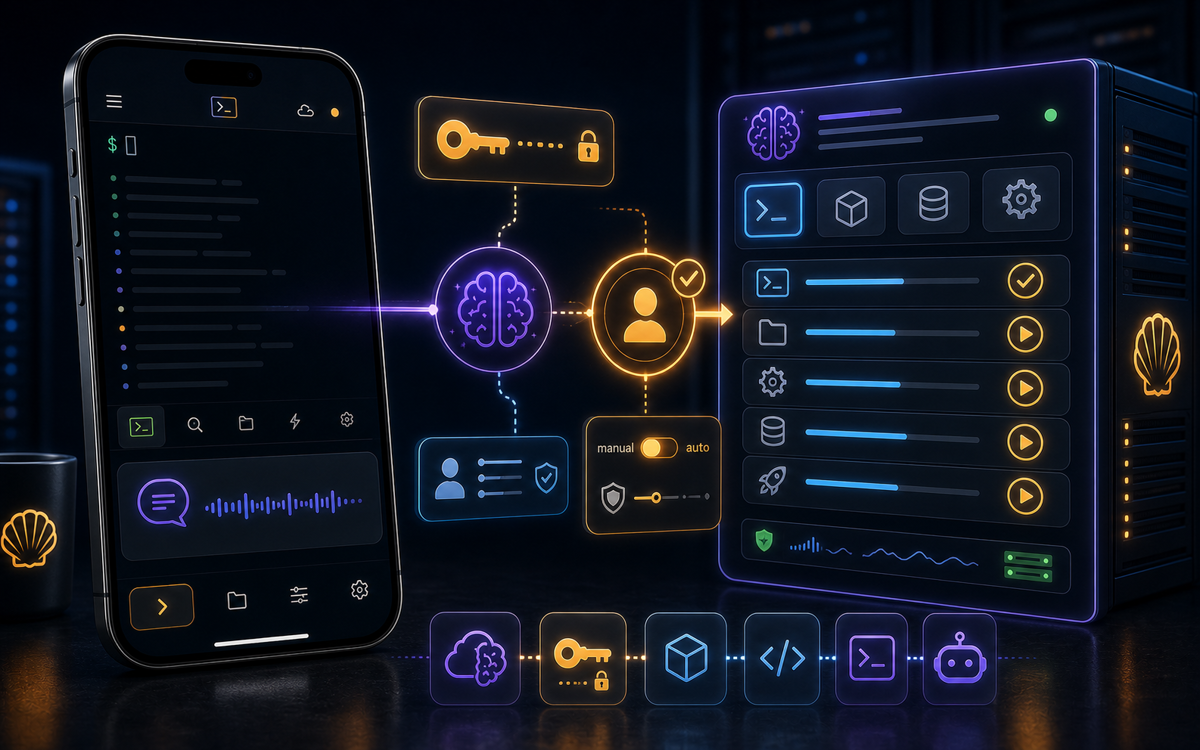
To use your own Claude or OpenAI key with ShellSage, navigate to the Account settings, select AI, and enter your provider key for unlimited AI usage.
What is Bring Your Own Key (BYOK)?
Bring Your Own Key (BYOK) is a feature in ShellSage that allows you to run all AI functionalities, including Ask Sage, Explain, Fix, and the command bar, using your own OpenAI or Anthropic (Claude) account key. This means that instead of relying on ShellSage’s shared allowance, you can utilize your own key, which is particularly beneficial for heavy AI users who want to avoid monthly caps. By using your own key, you also have the advantage of billing through your own provider, rather than through ShellSage.
Using BYOK gives you more control over your AI usage and costs.
This feature is available for users on the Pro and Team plans. If you are on the Free plan, you will see an upgrade prompt when attempting to access this functionality. BYOK is ideal for developers and system administrators who frequently utilize AI for terminal and coding assistance and prefer the performance or capabilities of Claude over OpenAI, or vice versa.
How to Set Up BYOK in ShellSage
Setting up BYOK in ShellSage is a straightforward process. Begin by launching the ShellSage app on your phone. Once open, navigate to your account settings. You can do this by tapping on your profile icon, which is typically located in the top right corner of the screen.
1. Open ShellSage app.2. Tap on your profile icon.3. Select Account.Within the Account section, look for the AI settings. Here, you will find the option labeled "Use your own key." Tap on this option to proceed to the next step.
The key you provide is stored securely and only the last four characters are visible after saving.
Next, you will have the option to select your AI provider. You can choose either OpenAI or Anthropic (Claude). After selecting your provider, paste your API key into the designated field. Remember that your OpenAI key will start with sk-, while your Claude key will begin with sk-ant-. Once you have entered your key, tap on the Save button to store your settings.
What Happens After You Save Your Key?
After saving your key, ShellSage will automatically check its validity with the provider. If your key is valid, it will be securely stored and encrypted, ensuring that it is protected at all times. Importantly, after you save your key, you will never see it displayed again, only the last four characters will be shown for reference. This design choice enhances security by preventing accidental exposure of your sensitive information.
If, at any point, you decide to remove or replace your key, you can easily do so from the same AI settings menu. Just tap on the option to change your key, enter the new one, and save it. This flexibility allows you to manage your AI usage according to your needs without hassle.
Why Should You Consider BYOK?
Implementing BYOK in ShellSage offers several advantages. First and foremost, it eliminates the monthly AI usage caps that come with the shared allowance. For developers and system administrators who rely heavily on AI for their workflows, this can translate into significant cost savings and greater productivity. You won’t need to worry about running out of AI credits when you need them most.
BYOK allows you to tailor your AI experience to fit your specific needs.
Additionally, using your own key means you can choose the AI provider that best fits your requirements. Some users prefer the responses from Claude for technical queries, while others may find OpenAI more effective for different types of tasks. With BYOK, you have that choice. Furthermore, having your AI usage billed directly to your provider allows for clearer tracking of expenses, especially in team environments where multiple users may be utilizing AI functionalities.
Tips for Maximizing Your BYOK Experience
To get the most out of your BYOK setup in ShellSage, consider these tips. First, keep your API keys secure. If you ever suspect that your key has been compromised, generate a new one immediately and update it in ShellSage. Also, familiarize yourself with the specific capabilities of the AI provider you are using. Each provider has its strengths, and understanding these can help you leverage AI more effectively.
Additionally, make use of ShellSage’s unique features, such as the blast-radius preview before executing dangerous commands. This feature helps you understand the potential impact of commands before you run them, reducing the risk of errors that could lead to data loss or system downtime. Lastly, don’t hesitate to use voice input for executing commands or asking Sage questions. This can streamline your workflow, especially when you are on the go.
Conclusion
Setting up BYOK in ShellSage is an excellent way to enhance your AI capabilities while maintaining control over your usage and costs. By following the steps outlined in this tutorial, you can easily integrate your own Claude or OpenAI key into your ShellSage experience. This will not only provide you with unlimited access to AI functionalities but also give you the flexibility to use the provider that best suits your needs.
⚡ Key takeaways
- ›BYOK allows you to use your own AI keys for unlimited access.
- ›Setting up BYOK is straightforward through the ShellSage app.
- ›BYOK provides better control over billing and AI usage.
