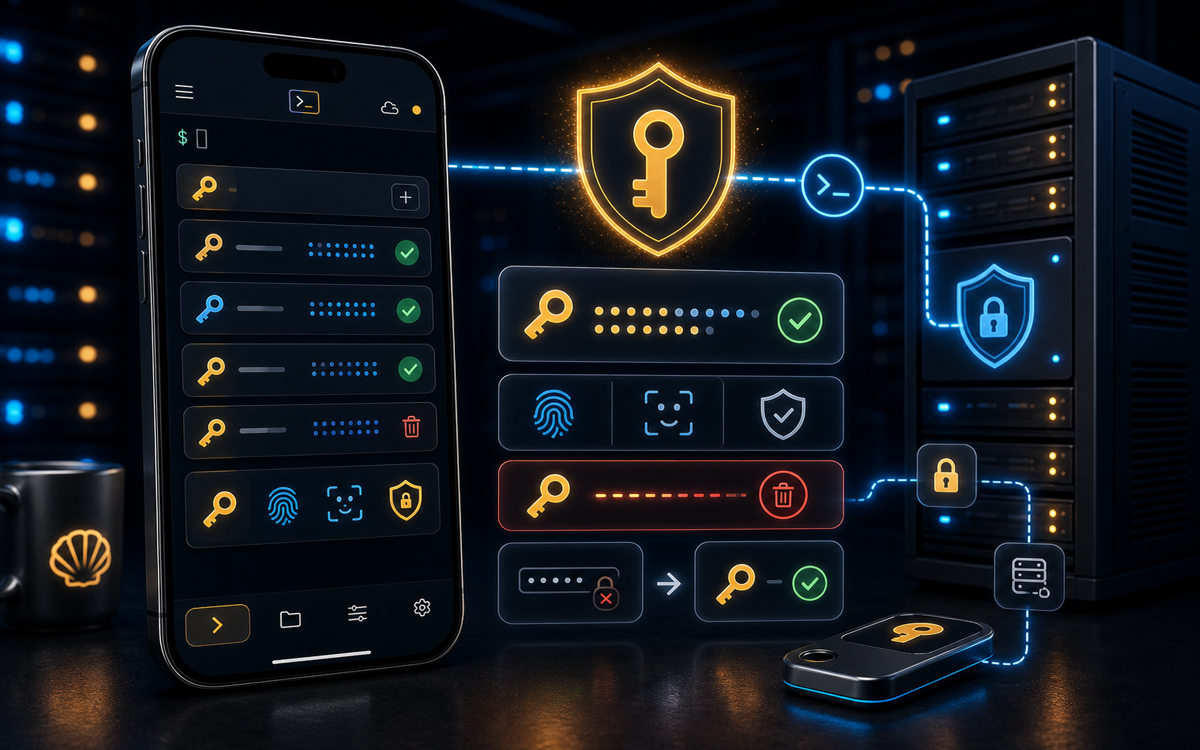
To improve SSH security on your phone, use key-based authentication, disable root login, and regularly update your SSH client. Tools like ShellSage streamline this process with features like AI assistance and voice input.
Why Use Key-Based Authentication?
One of the most effective ways to bolster SSH security is by using key-based authentication instead of passwords. This method uses a pair of cryptographic keys, a private key stored securely on your device and a public key stored on the server. When you attempt to connect, the server uses the public key to create a challenge that can only be answered by the corresponding private key.
To set this up, first generate a key pair on your phone. You can do this with the command:
ssh-keygen -t rsa -b 4096This command generates a 4096-bit RSA key pair, which is a strong encryption standard. Once generated, transfer the public key to your server with:
ssh-copy-id user@hostBy using key-based authentication, you eliminate the risk of brute-force password attacks. ShellSage simplifies this process with voice input, allowing you to generate and copy keys without typing lengthy commands on a small screen.
Key-based authentication significantly reduces the risk of unauthorized access.
Should You Disable Root Login?
Yes, disabling root login is a crucial step in securing your SSH server. Allowing root login makes it a prime target for attackers, as gaining root access gives them complete control over the server.
To disable root login, edit the SSH configuration file on your server. Open it with:
sudo nano /etc/ssh/sshd_configFind the line that says PermitRootLogin yes and change it to PermitRootLogin no. After saving the file, restart the SSH service to apply the changes:
sudo systemctl restart sshdBy doing this, you ensure that only users with specific permissions can access the server. ShellSage's Sage AI can assist by explaining configuration options and potential impacts, reducing the risk of misconfiguration.
How Can You Manage SSH Keys Securely?
Managing SSH keys securely is as important as using them. Ensure your private keys are stored safely on your phone, preferably in a secure app or encrypted storage. Never share your private key with anyone, and consider using a passphrase for an additional layer of security.
To add a passphrase to an existing key, use:
ssh-keygen -p -f ~/.ssh/id_rsaThis command prompts you to enter and confirm a new passphrase. Remember, a strong passphrase should be lengthy and contain a mix of characters.
Securing your private keys with a passphrase enhances protection against theft.
ShellSage provides a blast-radius preview feature that helps you understand the impact of commands before executing them, which is particularly useful when managing keys and configurations.
What About Regular Updates and Patches?
Keeping your SSH client and server updated is vital for security. Updates often include patches for vulnerabilities that could be exploited by attackers. On most distributions, you can update your SSH server using:
sudo apt-get update && sudo apt-get upgrade openssh-serverOn your phone, ensure your SSH client is up to date. ShellSage, unlike other clients like Termius or JuiceSSH, offers real-time AI assistance to help identify outdated components and guide you through updates, even on the go.
How Does ShellSage Enhance SSH Security?
While most mobile SSH clients like Termius and Blink provide basic access, ShellSage enhances security through innovative features. The Sage AI assistant explains command outputs and suggests fixes, reducing the likelihood of errors. The blast-radius preview lets you see potential impacts before executing risky commands, which is something other clients don't offer.
Additionally, ShellSage supports voice input, making it easier to execute commands without typing errors on a small screen. This is especially useful for complex configurations or when you're multitasking.
By integrating these features, ShellSage not only improves security but also enhances usability, making it a powerful tool for managing SSH connections from your phone.
⚡ Key takeaways
- ›Use key-based authentication to enhance SSH security.
- ›Disable root login to prevent unauthorized server access.
- ›Regularly update your SSH client and server to patch vulnerabilities.
