
How much should you let the AI do? In ShellSage you pick the level. AI Control keeps you in the loop so nothing runs until you approve it, while Full Automation lets the assistant run a task end to end. For anything on a real server, AI Control is the safe default, and the video below walks through exactly how it feels in the terminal.
What is the difference between AI Control and Full Automation?
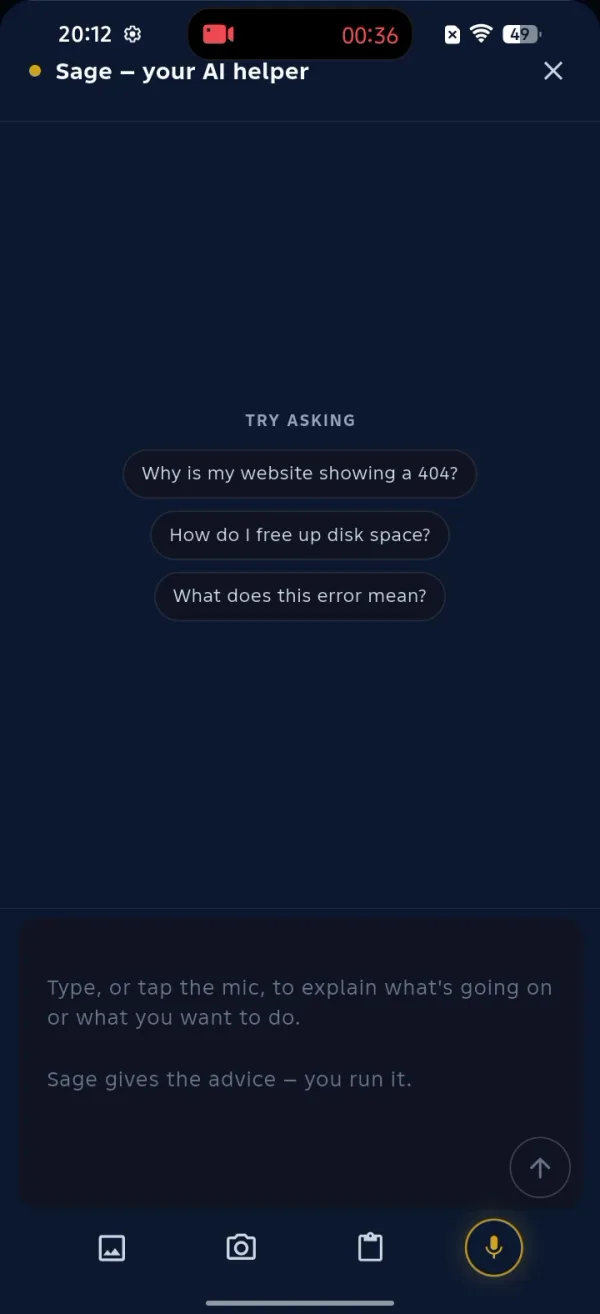
ShellSage has an AI helper called Sage that lives right inside your terminal session. When you ask it something, Sage gives you the advice and you run it. That one sentence is the whole philosophy of AI Control: the AI suggests, you stay the one who decides. Nothing touches your server until you tap to run it.
Full Automation is the opposite posture. You hand the assistant more rope so it can answer its own confirmation prompts and run a multi step task without stopping at every gate. That is faster for repetitive jobs you trust, but it also means you own every action it takes, including a wrong one. The two modes are not better or worse than each other. They are a trade between speed and oversight, and the right pick depends on what you are about to do.
With control comes responsibility. Always know what your AI is about to run.
How do you ask the AI for help inside the terminal?
Open a connected session and tap the Sage button on the terminal action bar. The helper slides up with a few starter prompts like why is my website showing a 404, how do I free up disk space, and what does this error mean. You are not limited to those. Type the problem in plain English, or tap the mic and say it. There is also a clipboard button and an image button, so you can paste a log line or upload a screenshot of the error you are staring at.
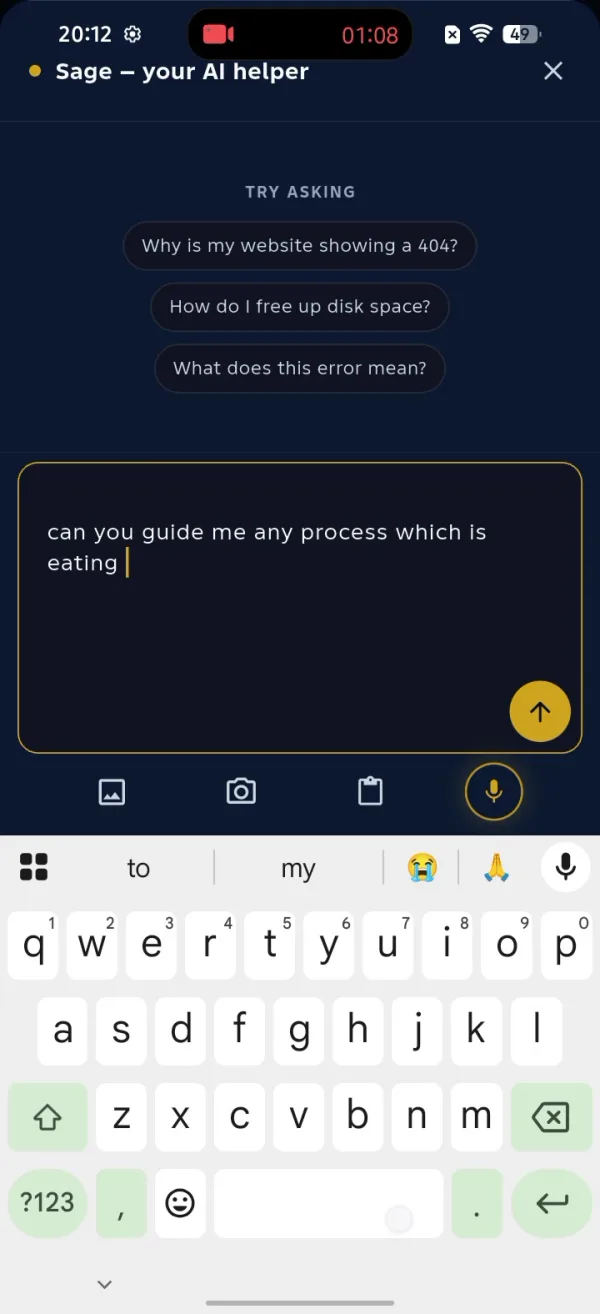
In the clip the question is simply which process is eating the most memory on the server. Sage reads the request, looks at the context of your session, and works out the command for you. You never had to remember the exact flags. That is the part that makes running a box from a phone realistic.
How does approving each command work?
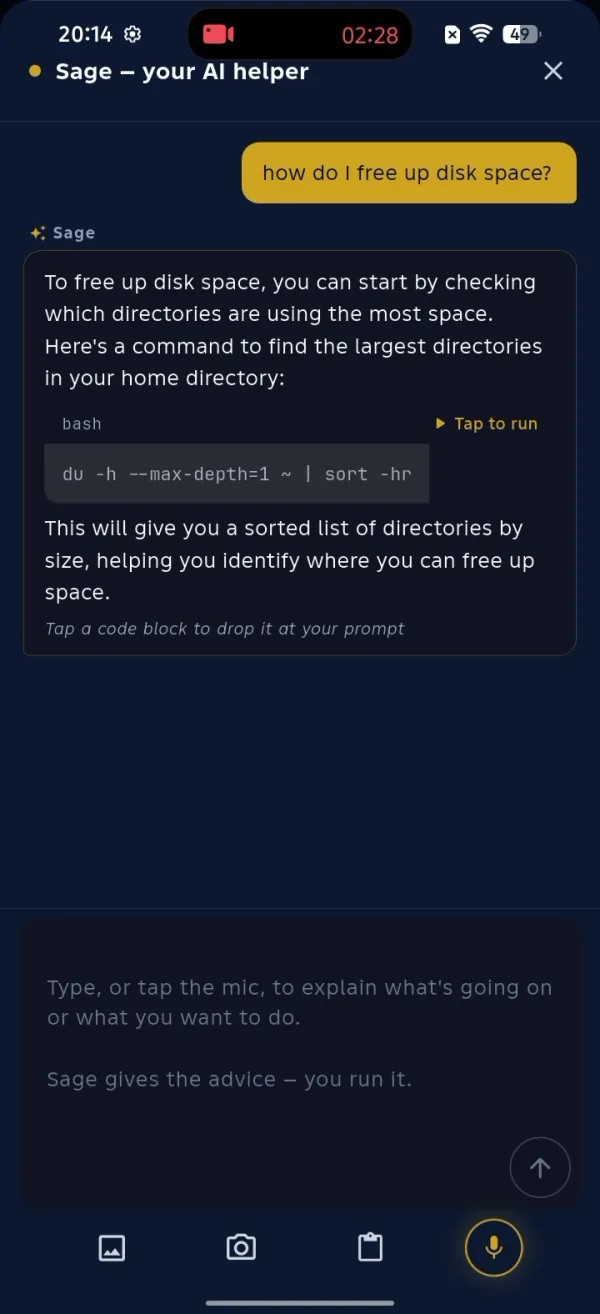
This is the heart of AI Control. Sage does not run anything on its own. It replies with a short explanation and a command in a code block marked Tap to run. You read what it wants to do, and only then do you tap it to drop the command at your prompt and execute. If the suggestion looks wrong, you ignore it and ask again.
When a command itself asks a yes or no question, ShellSage puts a focus overlay over the keyboard that highlights the Yes and No keys, so you can answer the prompt with one clear tap instead of hunting for the letter. Approve, deny, or rewrite the request. Either way the decision stays with you, which is the entire point of running in control mode.
What happens after you approve a command?
The moment you tap to run, the command executes in your live session and the real output lands in the terminal where you are working. In the video the disk question returns a sorted list of the largest directories, and the memory question runs a live process viewer so you can see what is actually using the box. There is no separate sandbox and no guesswork. You see exactly what the server returned.
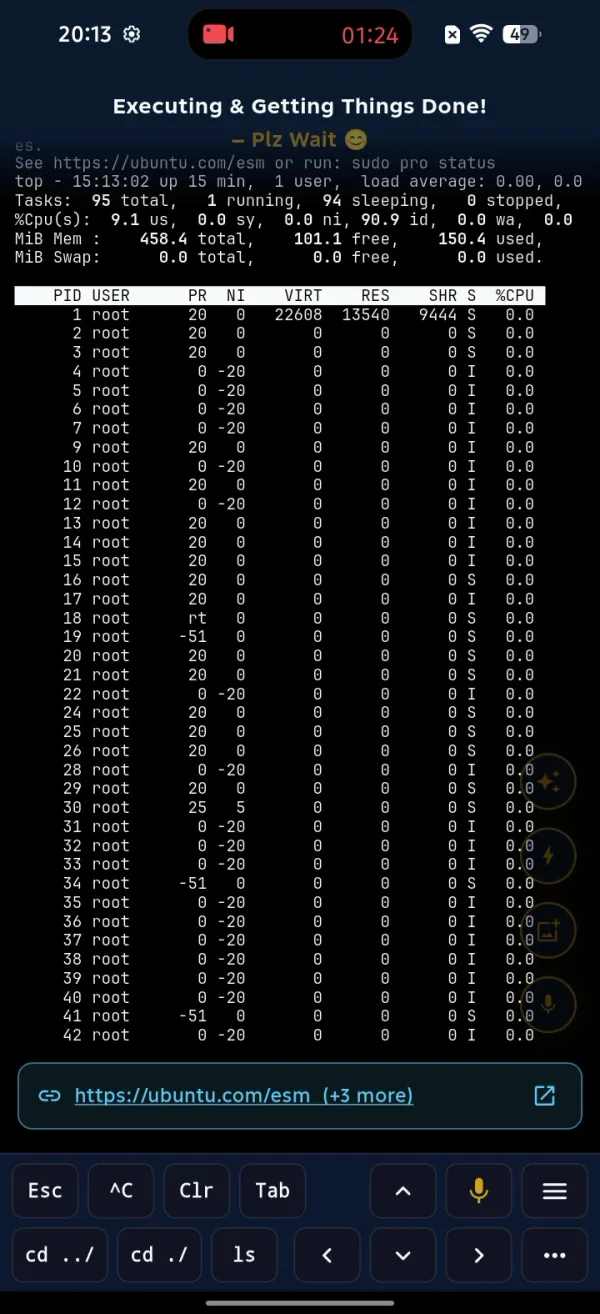
Because the output is right there, the next question is easy. You can ask Sage to read what came back, explain a line you do not understand, or suggest the follow up command. Ask, approve, read, ask again. That loop is how most real troubleshooting goes, and in control mode you keep a hand on every step of it.
How do you stop something the AI started?
A live command like a process viewer keeps running until you end it. ShellSage puts an Esc key and a Ctrl C key right on the on screen bar. Tapping Ctrl C does exactly what Ctrl C does on a laptop keyboard. It sends the interrupt, closes the running operation, and drops you back to a clean prompt. Esc gets you out of full screen views the same way.
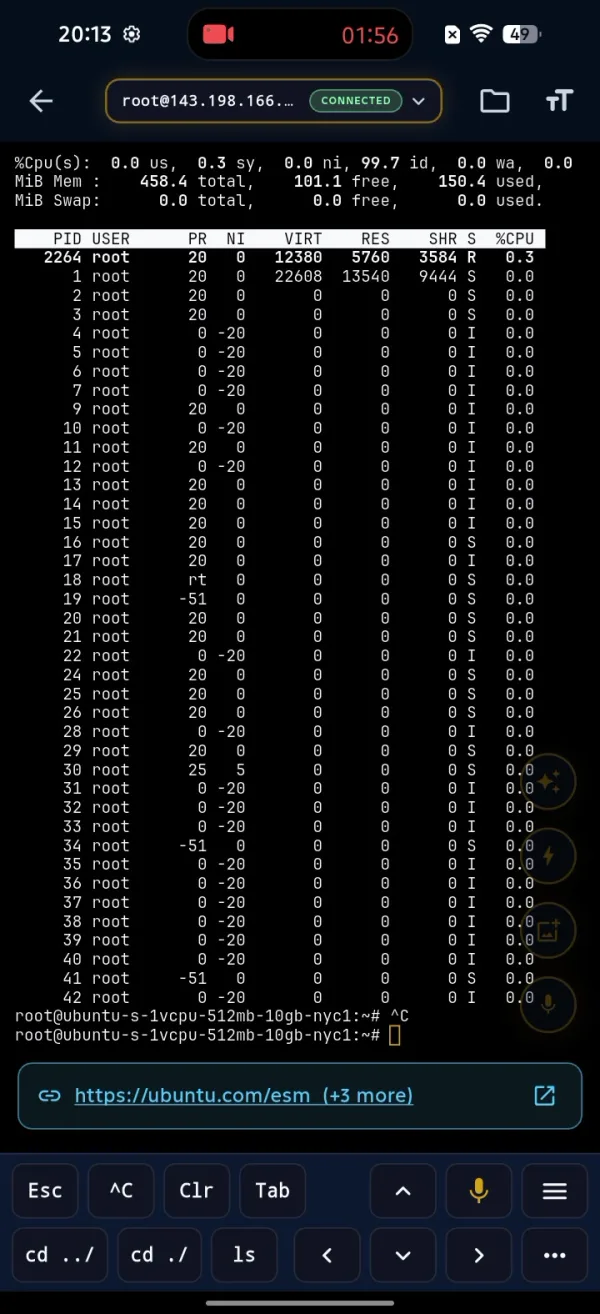
Knowing the exit is always one tap away is part of why control mode feels safe. You can let a command run, watch it, and pull the plug the instant it is doing something you did not expect.
What is the destructive command shield?
Control mode is the first guardrail, and the destructive command shield is the second. ShellSage watches for commands that can wipe or break things, the classic example being a recursive delete like rm -rf /important_directory. When it spots one, it stops and makes you confirm before anything happens, so a fast tap or a careless AI suggestion cannot quietly erase a directory. The shield is on regardless of which mode you are in, which matters most in Full Automation where you are not approving every step yourself.
rm -rf /important_directoryTreat the shield as a backstop, not a license. It catches the obvious disasters, but you are still the person responsible for what runs. Read the command Sage proposes, and keep real backups for the rare case something slips past every check.
When should you use Full Automation?
Full Automation earns its place on work that is repetitive and low risk, where stopping to approve each step is just friction. Routine package checks, pulling the latest code, restarting a service you restart every day. If you trust the task and the blast radius is small, letting the assistant run it end to end saves real time.
Reach for AI Control when the stakes go up: production systems, anything that deletes or rewrites files, configuration changes, or a box you do not know well yet. The cost of approving each command is a second of your attention. The cost of skipping that approval on the wrong command can be a restore from backup. When you are not sure, stay in control.
Taking a moment to confirm can save you from a restore later.
How do you switch between the two modes?
The choice is made per session, so you are never locked in. Launch your AI assistant in ShellSage and pick I Want Control to approve every command, or pick Full Automation to let it run. If you start a high risk job midway through, reconnect and switch to control. If you settle into routine maintenance, switch the other way. Match the mode to the task in front of you and let the destructive command shield cover both.
That is the full picture of how much to let the AI do. Sage gives the advice and you run it, you approve each command before it touches the server, Ctrl C and Esc are always one tap away, and the shield stops the truly destructive commands no matter what. Start in AI Control, lean on Full Automation only where it is safe, and you get the speed of an AI assistant without handing over the keys.
⚡ Key takeaways
- ›Understand the differences between AI Control and Full Automation modes.
- ›Always opt for AI Control when working with sensitive data.
- ›Switch modes based on your confidence in the AI's capabilities.
